Guides › Skin editor
How to get a Minecraft skin from a username
Load any Minecraft Java player's current skin (and cape) by their username, then edit it, remix it or download it.
2 min read · 3 steps · Beginner
Step 1: Open Import skin
In the editor's side panel (on a phone: the More button), open Import skin.
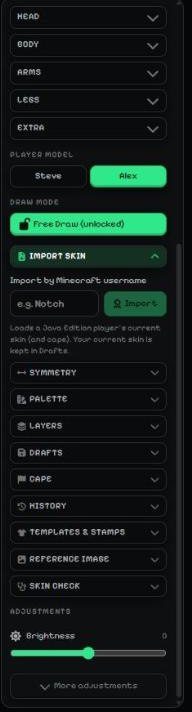
- Import skin: a box for the player name and an Import button.
Step 2: Type the player name and import
Type a Minecraft Java username (for example "Notch") and press Import. Their current skin — and cape, if they have one — loads into the editor.
The skin you were working on is kept in Drafts, so nothing is lost.
Tip: Only Java Edition names work here. Please only re-share someone else's skin with their permission — on MC-ENGINE, posting another person's skin as your own leads to a copyright strike.
Step 3: Edit, remix or download it
Change anything you like with the drawing tools, then press Export, choose Java or Bedrock and Download.
More guides
- Minecraft skin editor tools explained (with shortcut keys)
- The top bar: 2D / 3D view, HD size, undo and model
- Minecraft skin layers: base, overlay (hat & jacket) and body parts
- Colours, brush size, opacity and palettes
- Image to colour palette: get the colours of any picture
- Side panels: symmetry, drafts, history, templates, cape and more
- Make the editor yours: toolbar, tips, panels and layout
- How to make an HD Minecraft skin (128x128 or 256x256)
- Minecraft skin template explained (64x64 layout)
Not an official Minecraft product. Not approved by or associated with Mojang or Microsoft.