Guides › Skin editor
The top bar: 2D / 3D view, HD size, undo and model
Switch between 2D, 3D and side-by-side, make HD 128×128 or 256×256 skins, undo / redo, compare before and after, and change the background.
4 min read · 4 steps · Beginner
Step 1: Choose how you see the skin
Click the first button in the top bar (it shows the current view) to open the view menu.
2D Edit shows the flat skin texture, 3D Edit lets you paint straight on the model, and 2D + 3D shows both side by side.
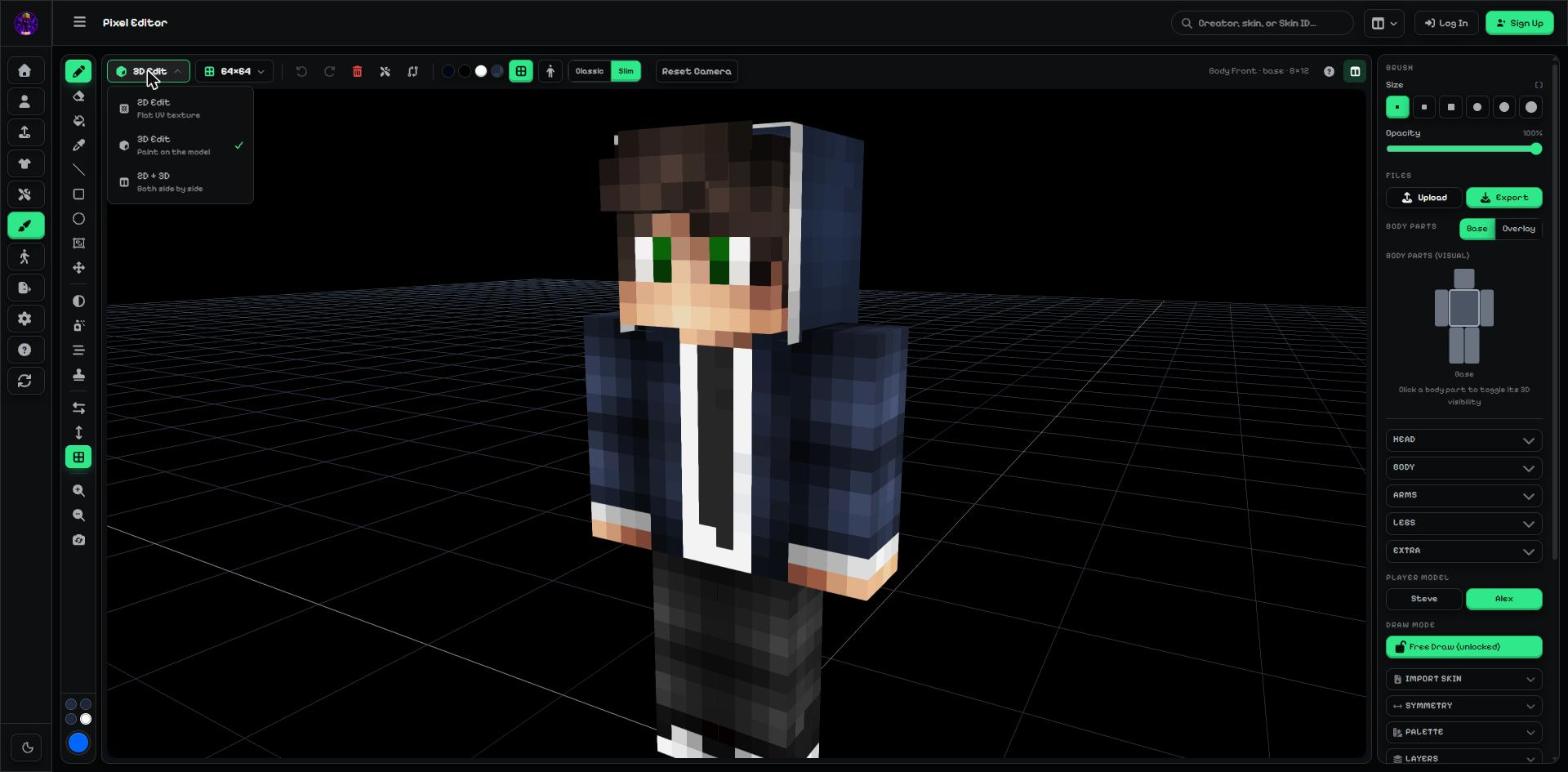
- The view button.
- The view menu: 2D Edit, 3D Edit, 2D + 3D.
Tip: Beginners: paint in 3D Edit — you see exactly where each pixel lands on the body.
Step 2: Make an HD skin
The second button sets the skin size: 64×64 (normal), 128×128 or 256×256 (HD).
Java Edition uses 64×64. Bedrock also accepts 128×128. HD skins give you more detail, like a real face.
- Skin size: 64×64, 128×128 or 256×256.
Step 3: Undo, redo, clear, repair and compare
The next buttons are: Undo (Ctrl + Z), Redo (Ctrl + Y), Clear part (the red bin — empties the selected body part), Repair (sends the skin to Skin Repair) and Before / after (compare with how the skin looked when you opened the editor).
Every change is also listed in the History panel, where you can click any step to go back to it.
- Undo · Redo · Clear part · Repair · Before / after.
Step 4: Background, grid floor, pose, model and camera
The round dots change the background colour of the 3D view. The grid button shows or hides the floor grid, and the person button turns the walking animation on or off.
Classic / Slim switches the model, and Reset Camera puts the 3D view back to the start.
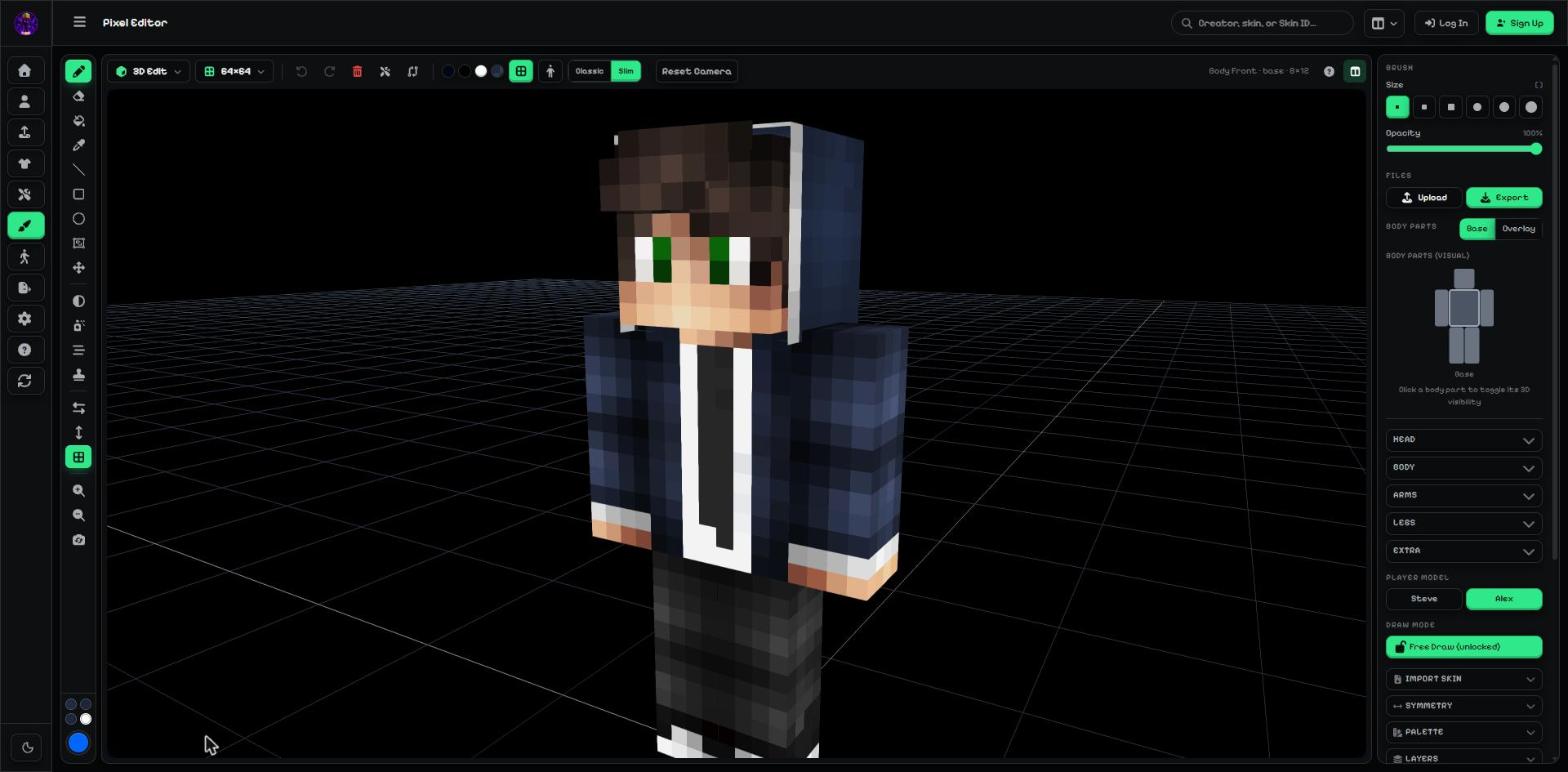
On the right of the top bar you always see which part, layer and size you are working on (for example "Body Front · base · 8×12").
- Background colours.
- Floor grid and animation.
- Classic / Slim model.
- Reset Camera.
More guides
- Minecraft skin editor tools explained (with shortcut keys)
- Minecraft skin layers: base, overlay (hat & jacket) and body parts
- Colours, brush size, opacity and palettes
- Image to colour palette: get the colours of any picture
- Side panels: symmetry, drafts, history, templates, cape and more
- Make the editor yours: toolbar, tips, panels and layout
- How to make an HD Minecraft skin (128x128 or 256x256)
- How to get a Minecraft skin from a username
- Minecraft skin template explained (64x64 layout)
Not an official Minecraft product. Not approved by or associated with Mojang or Microsoft.