Guides › Skin editor
Image to colour palette: get the colours of any picture
Load any picture as a reference image and turn its main colours into a palette you can paint with — perfect for matching a character, a logo or a photo.
2 min read · 3 steps · Beginner
Step 1: Load the picture
In the editor's side panel, open Reference image and press Load image. Pick any picture (up to 15 MB). It stays on your device — nothing is uploaded.
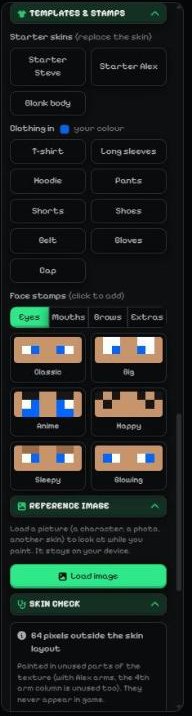
- Reference image.
Step 2: Make the palette
Press Palette from this image. The picture is shrunk, alike colours are grouped together and the most-used ones come first — up to 16 colours.
They are saved as a new palette called "From <file name>". The colours also show right under the button: click one to paint with it.
Step 3: Use it
Open Palette → My colours to find the new palette any time. Add, remove or rename colours there, or download it as .hex / .gpl for other apps.
Tip: use Floating or Trace in Reference image to keep the picture in view while you paint with its colours.
More guides
- Minecraft skin editor tools explained (with shortcut keys)
- The top bar: 2D / 3D view, HD size, undo and model
- Minecraft skin layers: base, overlay (hat & jacket) and body parts
- Colours, brush size, opacity and palettes
- Side panels: symmetry, drafts, history, templates, cape and more
- Make the editor yours: toolbar, tips, panels and layout
- How to make an HD Minecraft skin (128x128 or 256x256)
- How to get a Minecraft skin from a username
- Minecraft skin template explained (64x64 layout)
Not an official Minecraft product. Not approved by or associated with Mojang or Microsoft.