Guides › Skin editor
Minecraft skin editor tools explained (with shortcut keys)
What each button in the tool strip does — pencil, eraser, bucket, shapes, select, move, shade, noise, gradient, stamps, mirror and zoom — their settings (tolerance, replace colour, gradient bands, free select) and their keyboard keys.
8 min read · 8 steps · Beginner
Step 1: The tool strip
The tools are in the strip on the left of the editor, from top to bottom. Hover over any tool to see its name and key, like the Pencil tip in the picture.
Only one tool is active at a time; it is shown in green.
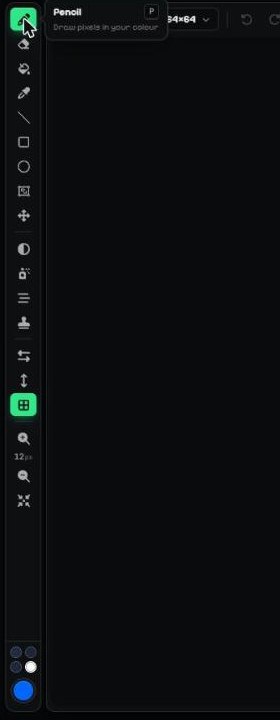
- Drawing tools: Pencil, Eraser, Bucket, Eyedropper, Line, Rectangle, Circle, Select, Move.
- Effect tools: Shade, Noise, Gradient, Stamp.
- Mirror X, Mirror Y and Grid.
- Zoom in, zoom out and Reset camera / Fit to view.
- Colours: recent colours and your current colour.
Step 2: Paint, erase and fill
Pencil (P) paints in your colour. Change how big it is with Size in the side panel, and how see-through with Opacity.
Eraser (E) makes pixels transparent again. In the side panel, Eraser mode has Erase and Restore Original: after you upload a skin or picture, Restore Original brings back the uploaded pixels instead of a hole.
Bucket (B) fills a whole area of the same colour at once.
Eyedropper (I) copies a colour from the skin: click any pixel and it becomes your colour.
Step 3: Lines and shapes
Line (L), Rectangle (R) and Circle (C): press where the shape starts, drag, and let go where it ends.
Shapes are great for belts, stripes, buttons and eyes.
Step 4: Select and Move
Select (S) marks an area. After that, every tool only changes pixels inside it, so you can't paint over the edge by mistake. Click Select again to remove the selection.
With a selection you can fill it, copy (Ctrl + C), cut (Ctrl + X), paste (Ctrl + V), flip or rotate it.
Move (M): draw a box around some pixels, then drag them to a new place.
Step 5: More ways to select
When Select is on, the side panel shows Selection buttons:
Free Select: instead of a box between two points, drag on the 3D model to paint exactly the pixels you want selected — any mix of parts and faces in one selection.
Invert: swaps selected and unselected pixels across the whole skin. Fill Selection paints every selected pixel in your colour. Clear Selection removes the selection so tools work everywhere again.
Click without dragging to select a single pixel. The small arrow next to Selection shows a short tip for the tool.
Step 6: Shade, Noise, Gradient and Stamp
Shade (H) makes pixels a bit darker each time you paint over them. Hold Shift to make them lighter instead. Perfect for folds in clothes and shadows under hair.
Noise (N) paints random shades of your colour, so a flat area looks like fabric, stone or fur.
Gradient (D) fades from your first colour to your second colour. Drag across the area. Set the second colour next to the colour button, and press X to swap the two.
Stamp (T) adds ready-made eyes, mouths, brows and more with one click.
Step 7: Tool settings in the side panel
Many tools have extra settings at the top of the side panel. They change when you pick another tool.
Shade: choose Darken or Lighten, and set the Strength. Each pixel changes once per stroke — lift the mouse and paint again to go further.
Noise: Variation sets how different the random shades are. Low = subtle fabric, high = rough stone or grass.
Bucket: Tolerance (0 = only the exact same colour, higher = similar colours get filled too). Switch Connected area only to Everywhere (replace colour) to recolour every matching pixel on the whole skin at once — great for changing a shirt or hair colour everywhere.
Gradient: shows your two colours and a swap button. Bands picks Smooth or 2–8 flat colour bands (pixel-art style). With bands, Dither between bands mixes the edges in a checker pattern. Keep empty pixels empty only colours pixels that are already painted. The gradient fills the selection if there is one, otherwise the part (or the face you start on).
Stamp: pick a stamp, then click the canvas or model — or press Put on face to place it at its usual spot. Pixels marked "P" use your colour.
Step 8: Mirror, grid and zoom
Mirror X (F) paints the left and right side at the same time. Mirror Y (Y) paints top and bottom at the same time.
Grid (G) shows or hides the lines between pixels.
Zoom in (+) and Zoom out (−) make the pixels bigger or smaller. In 3D they move the camera.
All tools and keys
| Option | Key | What it does |
|---|---|---|
| Pencil | P | Draw pixels in your colour. |
| Eraser | E | Erase pixels back to transparent. |
| Bucket | B | Fill a same-colour area at once. |
| Eyedropper | I | Click the skin to pick its colour. |
| Line | L | Drag to draw a straight line. |
| Rectangle | R | Drag to draw a box outline. |
| Circle | C | Drag to draw a circle outline. |
| Select | S | Pick the area tools can change. |
| Move | M | Box some pixels, then drag them. |
| Shade | H | Darken or lighten pixels — Shift flips. |
| Noise | N | Paint random shades for a textured look. |
| Gradient | D | Drag to fade between your two colours. |
| Stamp | T | Click to add eyes, mouths and more. |
| Mirror X | F | Paint left and right sides at once. |
| Mirror Y | Y | Paint top and bottom at once. |
| Grid | G | Show or hide the pixel grid. |
| Swap colours | X | Swap your first and second colour. |
| Zoom in / out | + / − | Bigger or smaller pixels; closer or further camera in 3D. The number between them is the pixel size. |
| Fit / Reset camera | Show the whole texture (2D) or put the 3D view back to the start. |
Tool settings
| Option | Key | What it does |
|---|---|---|
| Shade → Darken / Lighten, Strength | Direction and how much each pass changes the pixel. | |
| Noise → Variation | How far the random shades go from your colour. | |
| Bucket → Tolerance | 0 = exact colour only; higher fills similar colours too. | |
| Bucket → Everywhere (replace colour) | Recolour every matching pixel on the whole skin. | |
| Gradient → Bands | Smooth, or 2–8 flat bands. | |
| Gradient → Dither between bands | Checker-mix the band edges. | |
| Gradient → Keep empty pixels empty | Only colour pixels that are already painted. | |
| Stamp → Put on face | Place the stamp at its usual spot. | |
| Select → Free Select | Paint the exact pixels to select on the 3D model. | |
| Select → Invert / Fill / Clear Selection | Swap, fill or remove the selection. |
More guides
- The top bar: 2D / 3D view, HD size, undo and model
- Minecraft skin layers: base, overlay (hat & jacket) and body parts
- Colours, brush size, opacity and palettes
- Image to colour palette: get the colours of any picture
- Side panels: symmetry, drafts, history, templates, cape and more
- Make the editor yours: toolbar, tips, panels and layout
- How to make an HD Minecraft skin (128x128 or 256x256)
- How to get a Minecraft skin from a username
- Minecraft skin template explained (64x64 layout)
Not an official Minecraft product. Not approved by or associated with Mojang or Microsoft.