Guides › Skin editor
Colours, brush size, opacity and palettes
Pick colours, use shades of your colour, save your own palettes, build a palette from the skin or from any picture, and import .hex / .gpl files.
4 min read · 4 steps · Beginner
Step 1: Brush size and opacity
At the top of the side panel, Size sets how many pixels the Pencil, Eraser and effect tools paint at once (1 pixel up to a big round brush).
Opacity makes the paint see-through: 100% is solid, lower values mix with the colour underneath.
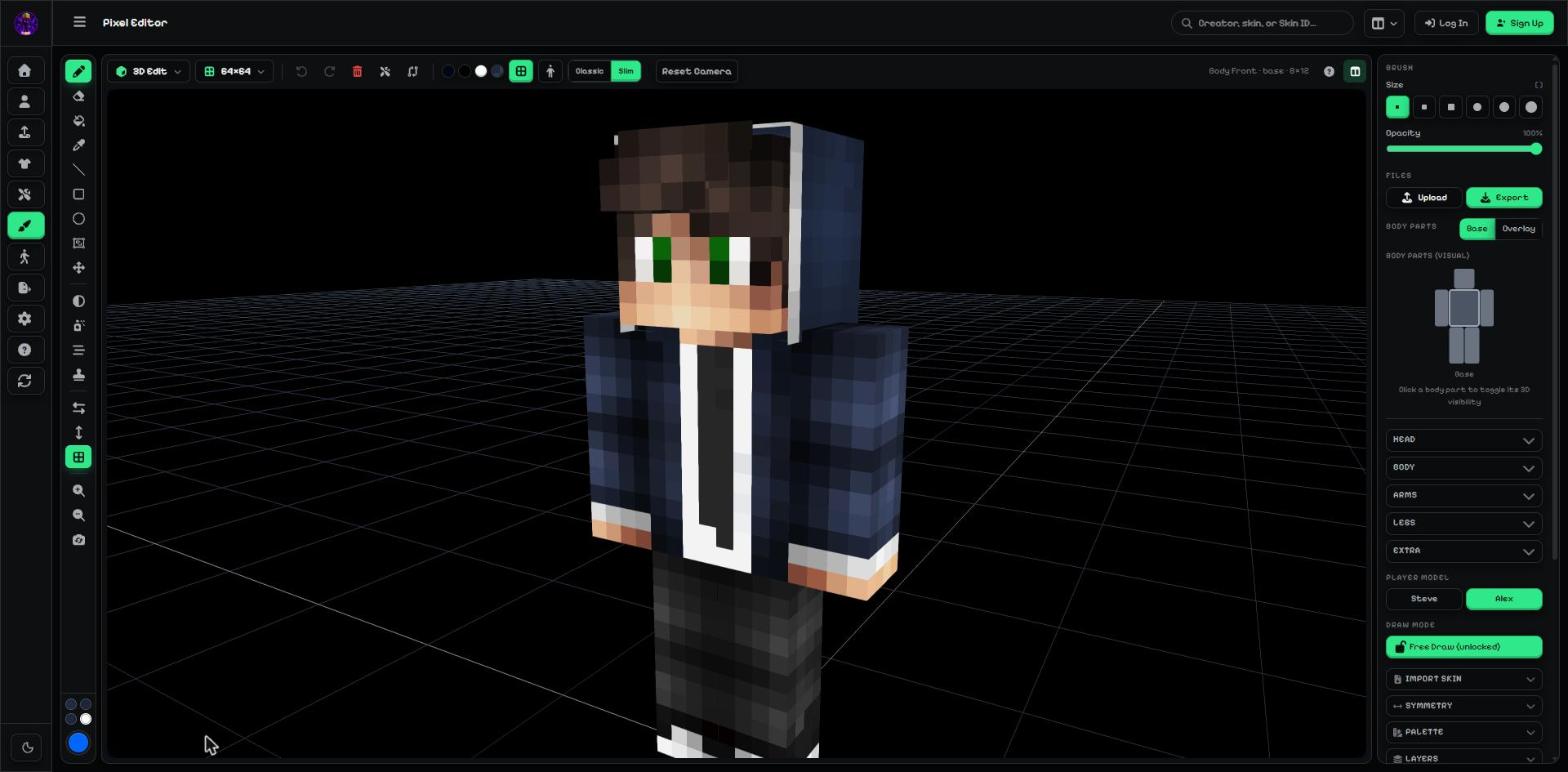
- Brush: Size buttons and the Opacity slider.
Step 2: Shades of your colour
Open Palette. The top row shows shades of your colour — from dark to light. Click one to use it. This is the easiest way to add shadows and highlights.
Save all keeps those shades in your own palette.
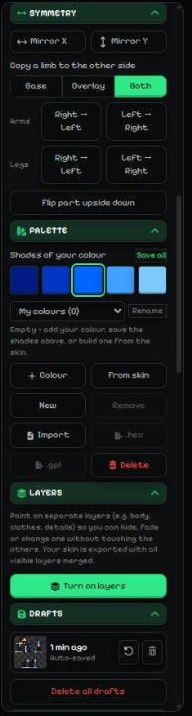
- The Palette panel.
Step 3: Your own palettes
My colours is a list of palettes you make. + Colour adds your current colour, From skin builds a palette from every colour in the skin, New starts another palette and Rename / Remove / Delete manage them.
Import loads a palette file (.hex, .gpl, .json or .txt); .hex and .gpl save your palette for other apps (like Lospec, Aseprite, GIMP or Krita).
To remove one colour, right-click it, or press Remove and click the colours you don't want.
Step 4: Palette from a picture
Want the colours of a picture, a character or a photo? Open Reference image, press Load image, then press Palette from this image.
MC-ENGINE finds the main colours of the picture (up to 16) and saves them as a new palette named after the file. Click a colour under the button to paint with it, or find the palette later in Palette → My colours.
Tip: The guide Image to colour palette shows this step by step.
More guides
- Minecraft skin editor tools explained (with shortcut keys)
- The top bar: 2D / 3D view, HD size, undo and model
- Minecraft skin layers: base, overlay (hat & jacket) and body parts
- Image to colour palette: get the colours of any picture
- Side panels: symmetry, drafts, history, templates, cape and more
- Make the editor yours: toolbar, tips, panels and layout
- How to make an HD Minecraft skin (128x128 or 256x256)
- How to get a Minecraft skin from a username
- Minecraft skin template explained (64x64 layout)
Not an official Minecraft product. Not approved by or associated with Mojang or Microsoft.