Guides › Skin editor
Minecraft skin layers: base, overlay (hat & jacket) and body parts
Paint hats, jackets and sleeves on the second layer, lock painting to one body part, hide parts in 3D and use extra paint layers.
4 min read · 4 steps · Intermediate
Step 1: Base and Overlay
Every Minecraft skin has two layers. Base is the body itself. Overlay is a second, outer layer that floats just above it — use it for hats, hair, jackets, sleeves and pants.
Switch with the Base / Overlay buttons under Body parts. Overlay pixels can be see-through, so the base shows through the gaps.
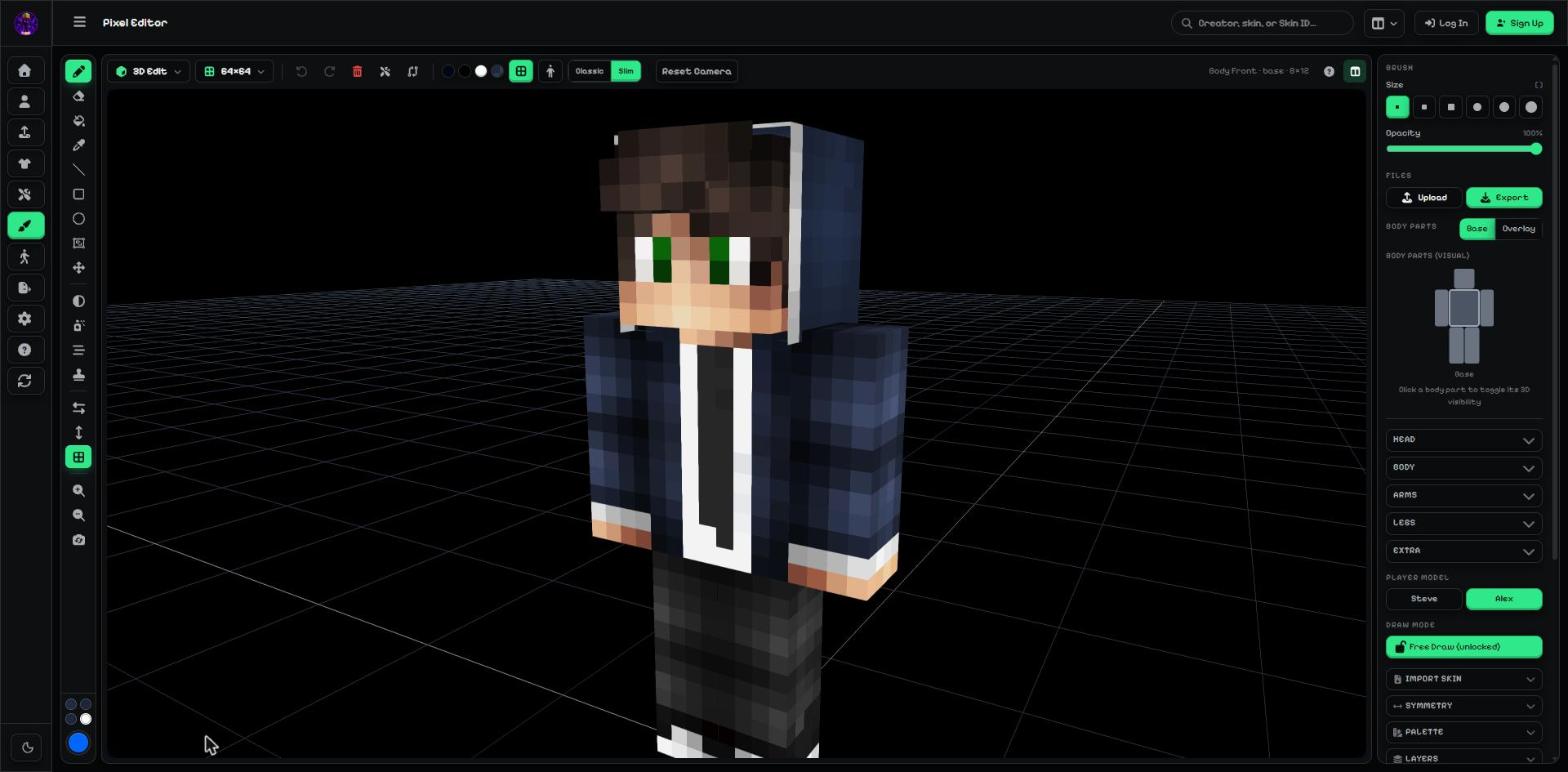
- Base / Overlay: which layer you paint on.
- Body parts (visual): click a part to show or hide it in 3D — handy for painting under the arms.
- Head, Body, Arms, Legs, Extra: open one to jump to a single face (Front, Back, Left…).
Step 2: Free Draw or locked to one part
When Draw mode says Free Draw (unlocked), tools work anywhere on the skin.
Click it to lock: then tools only change the body part you picked, so you can't paint into the next part by mistake.
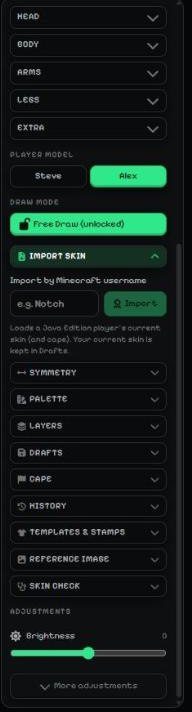
- Player model: Steve or Alex.
- Draw mode: Free Draw (unlocked) or locked to the part.
Step 3: Extra paint layers
Open Layers and press Turn on layers to paint on separate layers, for example body, clothes and details.
You can hide, fade or change one layer without touching the others. When you export, all visible layers are merged into one skin.
Step 4: Manage your layers
Click a layer to paint on it. The eye hides or shows it, and the Opacity slider fades the selected layer. Double-click a name to rename it.
The buttons under the list: + adds a new empty layer above, the copy button duplicates the layer, the arrows move it up or down, Merge joins it into the layer below and Delete removes it.
Flatten merges all visible layers into one image and turns layers off. You can undo it with Ctrl + Z.
More guides
- Minecraft skin editor tools explained (with shortcut keys)
- The top bar: 2D / 3D view, HD size, undo and model
- Colours, brush size, opacity and palettes
- Image to colour palette: get the colours of any picture
- Side panels: symmetry, drafts, history, templates, cape and more
- Make the editor yours: toolbar, tips, panels and layout
- How to make an HD Minecraft skin (128x128 or 256x256)
- How to get a Minecraft skin from a username
- Minecraft skin template explained (64x64 layout)
Not an official Minecraft product. Not approved by or associated with Mojang or Microsoft.