Guides › Share & use your skin
Moving cape and elytra in Minecraft Bedrock (add-on)
Make a moving cape from any GIF, download one .mcaddon, turn it on in a world — the cape and an elytra land in your inventory and both move. Works on Windows, Android and iOS; everyone in the world sees it.
4 min read · 6 steps · Beginner
Step 1: Make the moving cape
In the editor open Cape → Make a cape (or Edit cape) → Upload cape, elytra or picture and pick your GIF (up to 5 MB).
In Crop and adjust drag the box over the part you want, set Cape size to 512×256 and tick Keep it moving. Press Use both so the GIF goes on the cape and the elytra wings — Use this only fills the side you picked under Wear as.
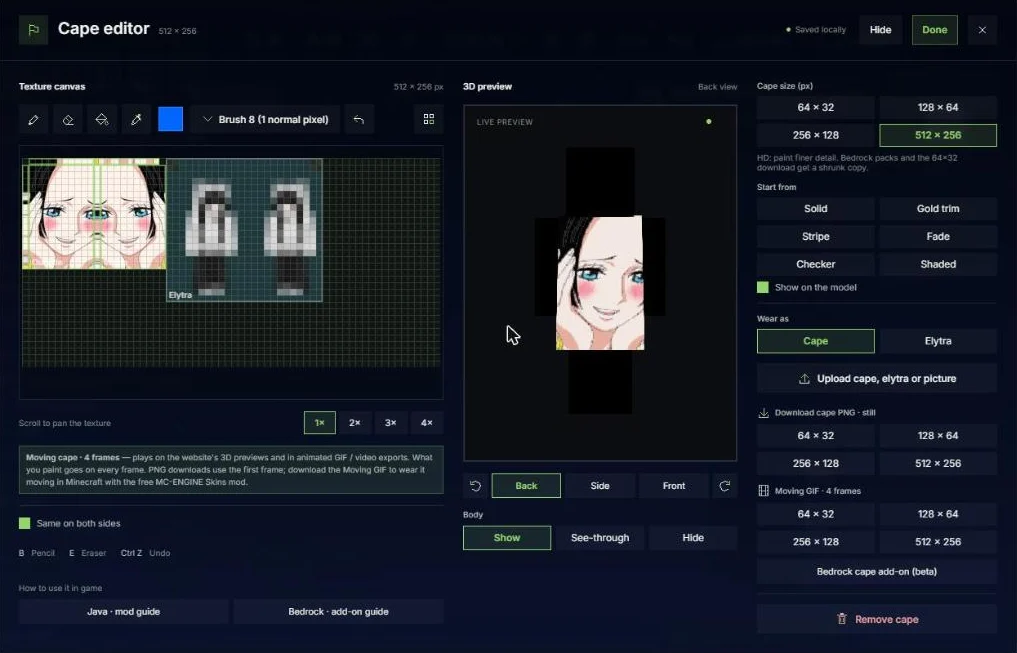
Tip: A cape that only moves on the cape part still gets a moving elytra: the add-on then puts the moving cape picture on the wings.
Step 2: Download the add-on
In the Cape editor press Bedrock cape add-on (beta) (or More → Bedrock cape (beta) in the Upload / Export window). You get one .mcaddon file with a behavior pack and a resource pack.
On a phone, download it on the phone. On a PC, you can also send the file to your phone (chat app, Drive, cable).
Step 3: Import it and turn it on in a world
Open the .mcaddon file — Minecraft starts and shows Import started… then Successfully imported (twice: one per pack).
Make a new world: Play → Create New → Create New World. On the left open Behavior Packs → My Packs, tap MC-ENGINE cape and press Activate. Say Yes when it asks to add the resource pack too. It must be in the ACTIVE list before you press Create.
Tip: Turning packs on doesn't work from the pause menu inside a world. Leave the world, then use the pencil next to it in the world list (or make a new world).
Step 4: Wear the cape and the elytra
The first time you join, the MC-ENGINE cape and an elytra are put in your inventory by themselves (once per player). Lost them? Creative inventory → search cape, or /give @s elytra.
Put the cape in the chest slot and switch to third person: it hangs on your back and moves. Swap it for the elytra: the wings show the same GIF and move — standing, sneaking and gliding.
- Cape and elytra both use the chest slot — wear one at a time, like in normal Minecraft.
- Bedrock plays the GIF at one steady speed (the average of its frames).
Step 5: Friends, Realms and servers
Everyone who joins your world downloads the pack and sees your cape and elytra — nobody installs anything. On a Realm or server, the owner adds the packs once.
- The add-on changes every elytra in that world — friends wearing an elytra show your design too.
- Each download is its own add-on with its own cape item, so several capes can be in one world; the elytra uses the top pack's design.
- Needs Bedrock 1.21 or newer on Windows, Android or iOS. Consoles can't import files, but they can join a Realm or server that has it.
- The free trial of Minecraft can't use add-ons.
Step 6: If something doesn't show
No cape item, but the elytra changed: the behavior pack isn't on in that world — only the resource pack is. Turn it on as in step 3.
"Duplicate pack" on import: an older copy of the same pack is still there. Remove it in Settings → Storage and import again.
Cape still, not moving: make the cape again with Keep it moving ticked, then download the add-on again.
More guides
- How to put a custom skin in Minecraft Java & Bedrock
- Wear HD skins and moving capes in Minecraft (MC-ENGINE Skins mod)
- Moving GIF cape in Minecraft: from the website to your game
- How to turn a skin PNG into a .mcpack for Bedrock
- How to make a Bedrock skin pack with several skins
- How to make a Minecraft skin GIF or video (4 ways)
- Share skins with the community
- Publish skins and manage My skins
- Your profile: photo, links, badges and security
- Events: skin contests — enter, vote and win
- Favourites, collections, notifications, reports and the weekly leaderboard
- Minecraft capes and elytra: browse, download, wear and upload
Updated 2026-11-11 · by the MC-ENGINE team
Not an official Minecraft product. Not approved by or associated with Mojang or Microsoft.