Guides › Share & use your skin
Share skins with the community
Create an account, publish skins to the gallery, and download, rate, favourite, collect, comment on and remix other people's skins.
5 min read · 5 steps · Beginner
Step 1: Make a free account
Press Sign Up at the top right. Fill in a player name, email and password, tick that you are 13 or older and accept the rules, then press Create account. Or use Google or Discord.
The skin you are working on stays where it is while you sign in.
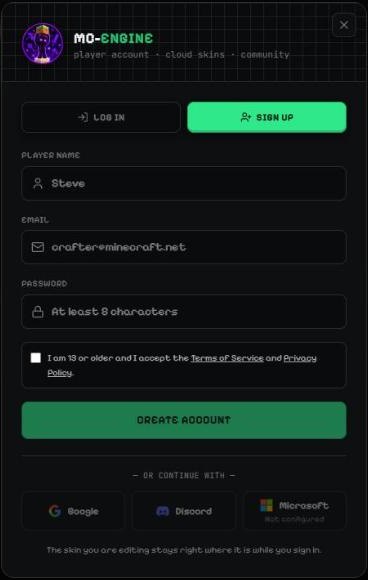
- Log in / Sign up.
- Player name, email, password.
- Age and rules.
- Create account.
- Google / Discord.
Step 2: Publish your skin
On Upload / Export, press Publish to gallery in the More row, or use Upload Skin on the Skins page. Give it a name and keywords so people can find it.
You can make a skin public or private, and edit or delete it any time from your Profile.
Step 3: Browse the gallery
Open Skins. For You and Trending show public skins. Use the search at the top to find a creator, a skin name or a skin ID.
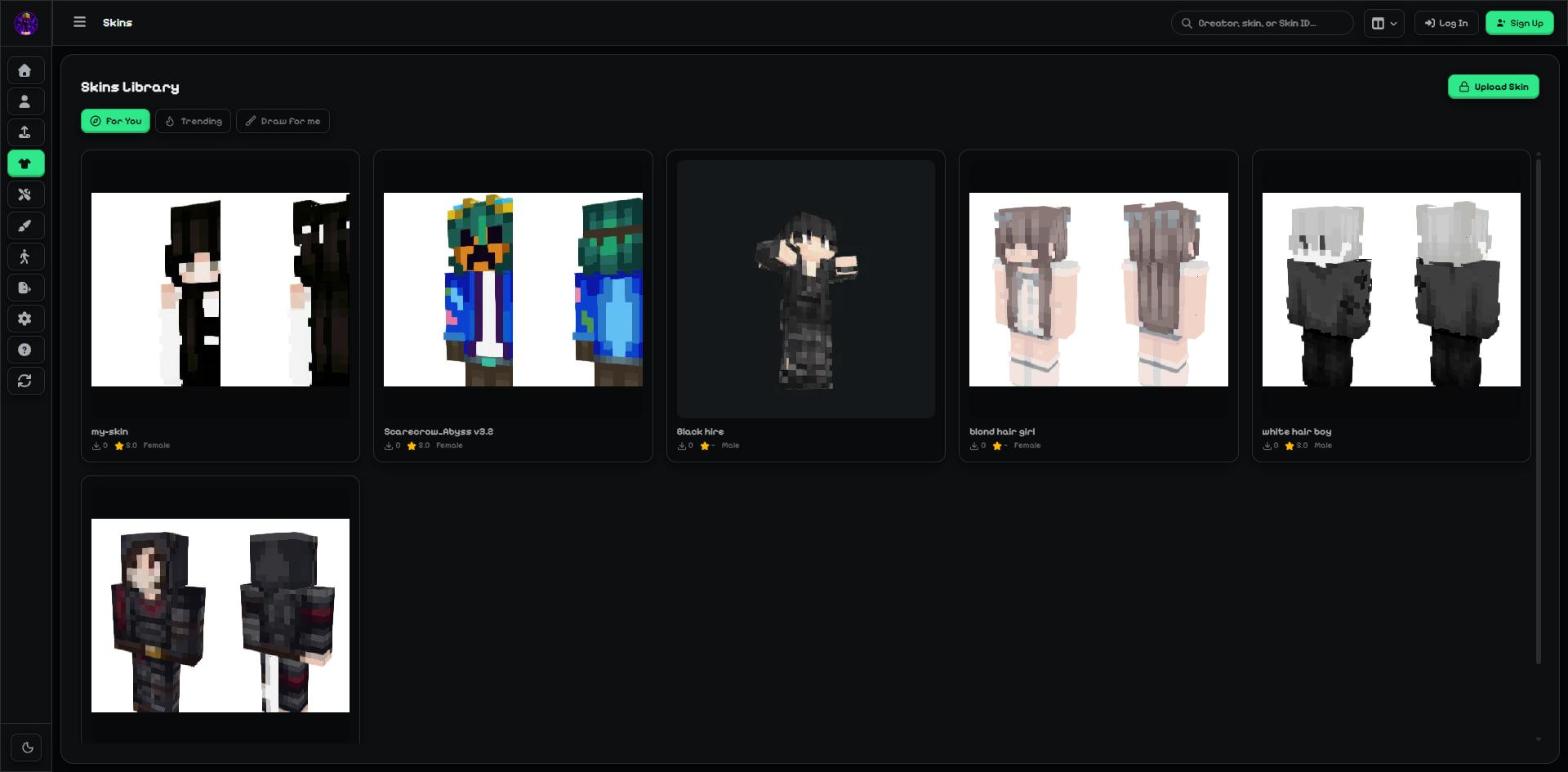
- For You / Trending.
- Upload Skin.
- A skin card: click to open it.
- Search: creator, skin or skin ID.
Step 4: On a skin's page
Download PNG to wear it, or Remix in editor to change it (the original creator gets the credit).
Click the stars to rate it. The buttons at the top favourite it, save it to a collection, make an animated GIF / video, and share / copy the link. Logged-in users can leave comments.
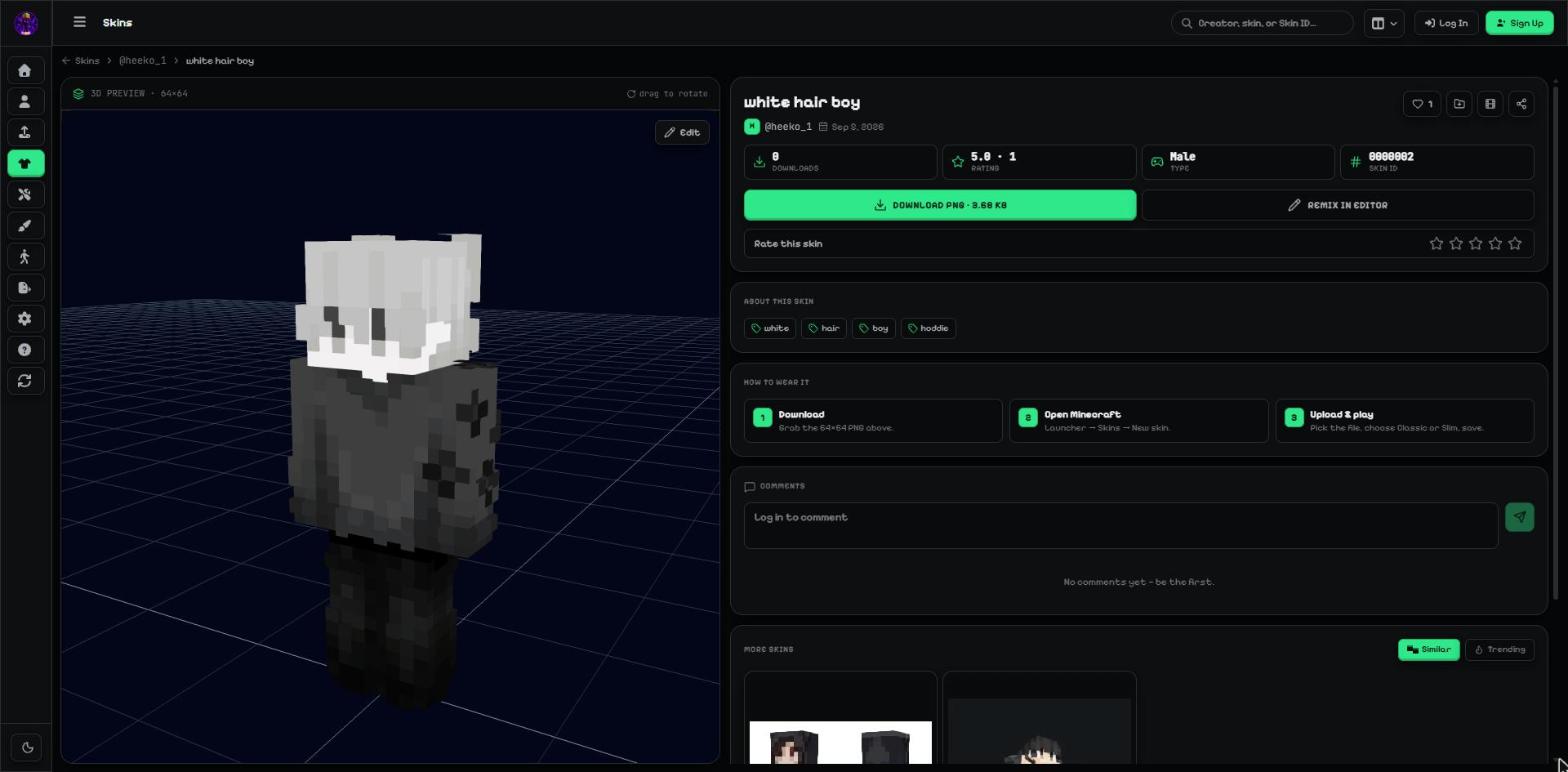
- Favourite · Collection · Animated preview · Share.
- Download PNG.
- Remix in editor.
- Rate this skin.
- Comments.
Tip: Follow a creator with Orbit on their profile to see their new skins.
Step 5: Compare a remix with the original
A remixed skin shows "remix of …" with a link to the original. Press Compare to see both: drag the slider over the flat textures, or look at them side by side in 3D.
The same Before / after window is in the editor's top bar, where it compares your skin with how it looked when you opened the editor.
More guides
- How to put a custom skin in Minecraft Java & Bedrock
- How to make a Minecraft skin GIF or video (4 ways)
- Publish skins and manage My skins
- Your profile: photo, banner, links, badges and security
- Events: skin contests — enter, vote and win
- Favourites, collections, notifications, reports and the weekly leaderboard
Not an official Minecraft product. Not approved by or associated with Mojang or Microsoft.