Guides › Share & use your skin
How to make a Minecraft skin GIF or video (4 ways)
Every way to animate a skin on MC-ENGINE: a quick walking / turning GIF or video of your skin or anyone's public skin, a posed cinematic video with Capture Me, still PNG renders, and recording longer clips with your own screen recorder.
5 min read · 5 steps · Beginner
Step 1: Way 1 — Quick GIF or video of your skin
Open Upload / Export. In the More row under the Download button, press Animated GIF / video.
Pick the Motion — Walk + turn, Turn only or Walk only — the Background (Dark, Light or None = see-through, GIF only) and the Size (Small or Large). If you made a cape, tick Show my cape.
Press Make GIF (plays everywhere) or Make video (about 6 seconds; smaller and smoother — WebM or MP4, depending on your browser). It appears in the box; press Download.
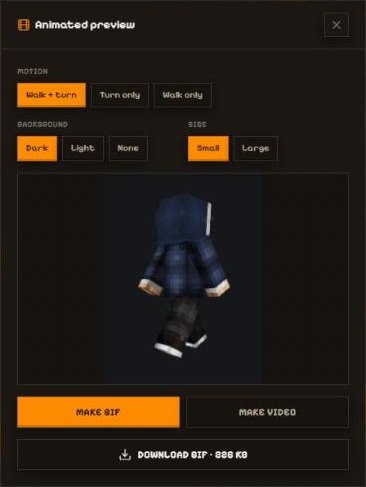
- Motion.
- Background and Size.
- Preview of the result.
- Make GIF / Make video.
- Download.
Step 2: Way 2 — GIF or video of any public skin
Open any skin in Skins and press the film button at the top of its page (Animated preview). It opens the same maker as Way 1, for that skin.
Great for showing off a creator's skin — please credit them (their @name is on the page).
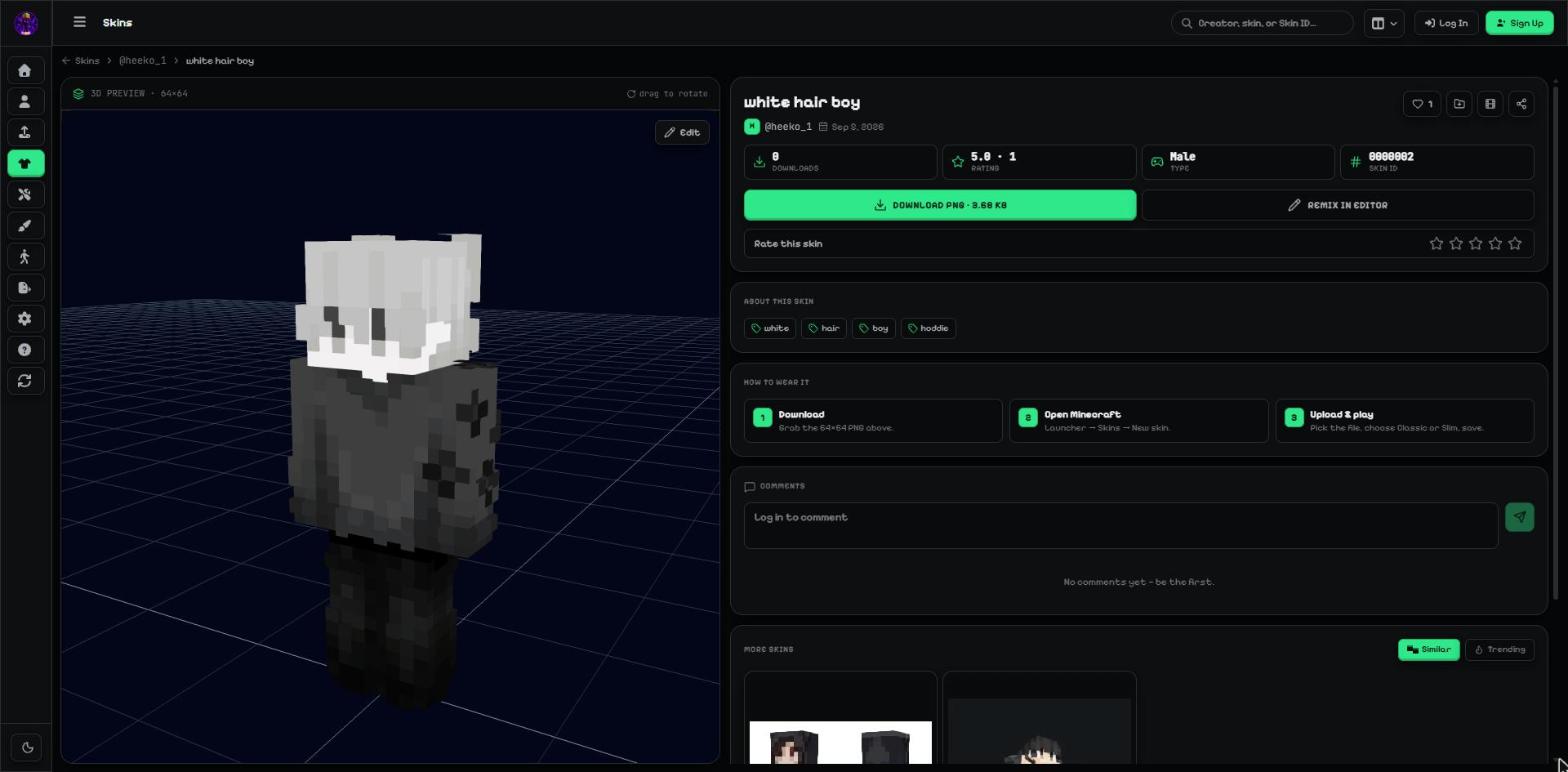
- Animated preview (film icon).
Step 3: Way 3 — Posed, cinematic video with Capture Me
Open Custom Pose, choose a pose, then press Capture Me (on a phone: the video button at the top).
Set the Spin, the Viewpoint and a Cinematic camera move — or build your own path with Add current view as point.
Under Save, pick 3, 5, 8 or 12 seconds and press Record. It asks whether to add a cinematic: Record custom cinematic, pick a ready-made one, or No, record as is. When it's done, download the video (WebM or MP4, depending on your browser).
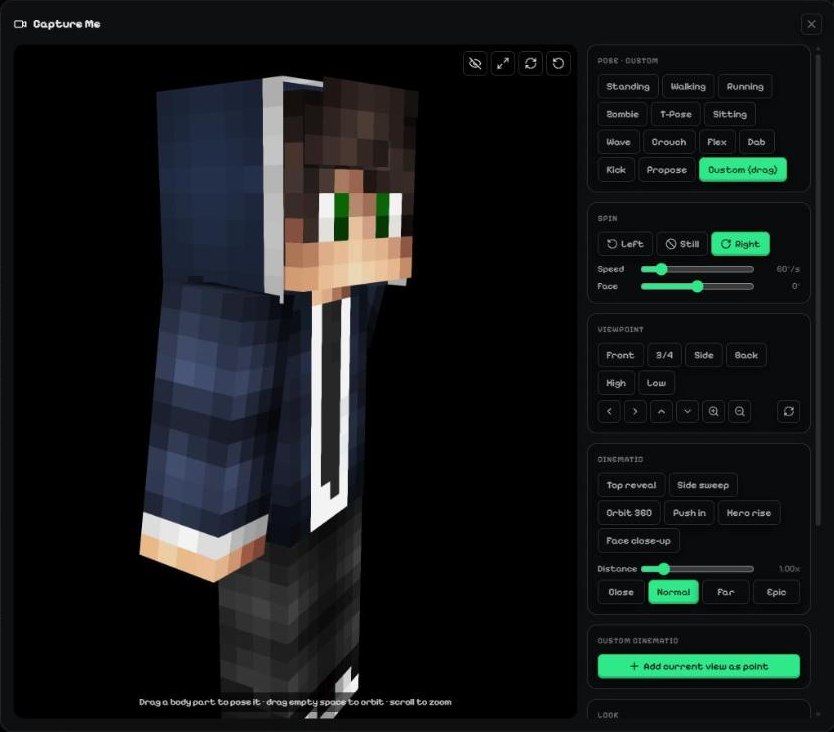
- Spin.
- Viewpoint.
- Cinematic moves.
- Custom cinematic points.
Tip: For TikTok / YouTube Shorts, use a tall phone screen or Fullscreen, and the 8 or 12 second length.
Step 4: Way 4 — Longer clips with your own screen recorder
In Capture Me, press Clean view (the eye button) and Fullscreen: every button disappears and only your character is on screen.
Now record with any screen recorder — on Windows Win + G (Xbox Game Bar) or OBS, on Mac Cmd + Shift + 5, on phones the built-in screen recording — for as long as you like. Press Esc to get the buttons back.
- Clean view · Fullscreen · Spin · Reset.
Step 5: Still pictures (PNG renders)
Want a picture instead of a clip? On Custom Pose, press Screenshot — choose the see-through BG first for a PNG without a background (good for thumbnails). Capture Me has a Screenshot button too.
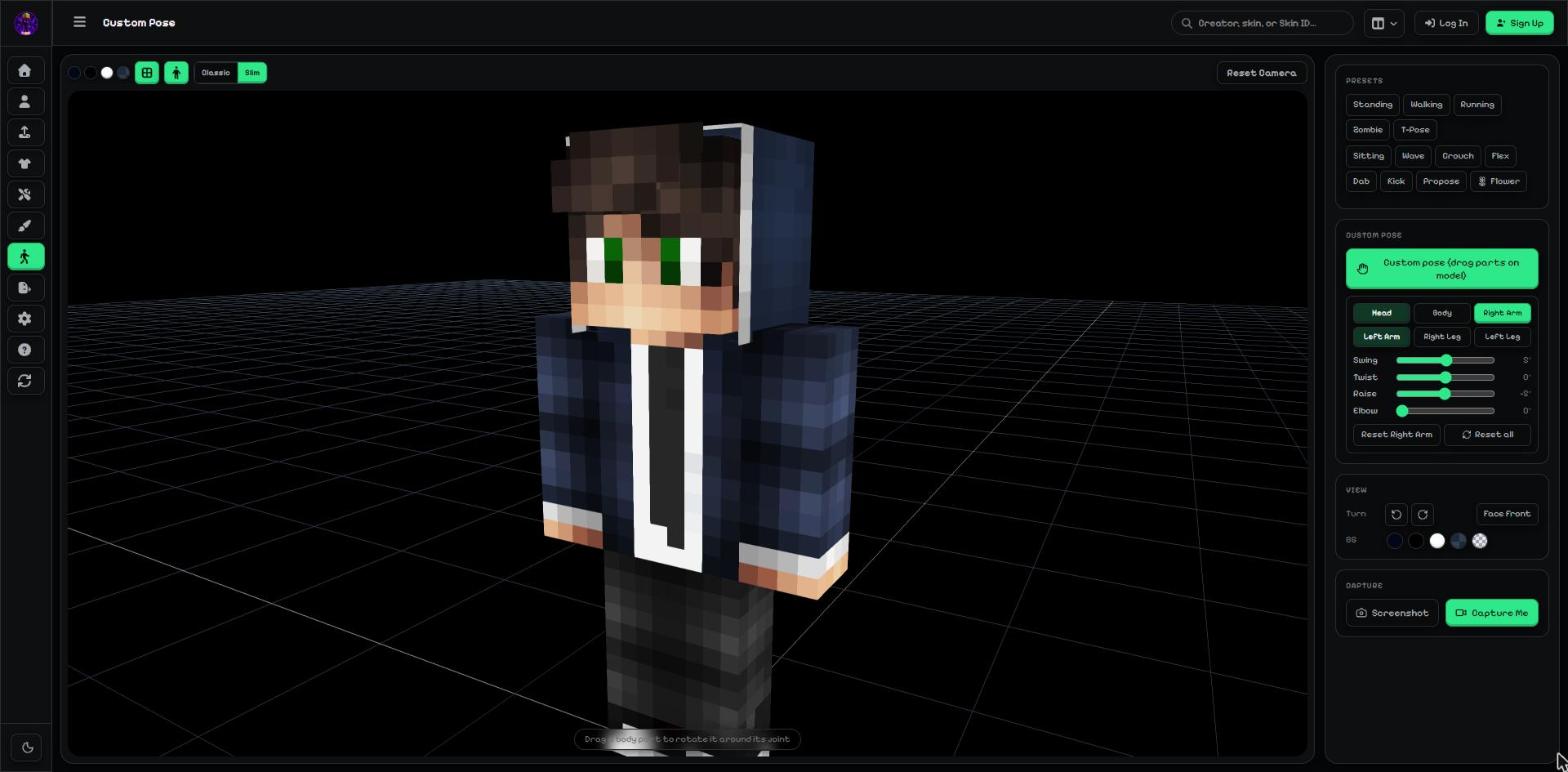
- BG (background, including see-through).
- Screenshot · Capture Me.
Which way should I use?
| Option | Key | What it does |
|---|---|---|
| Animated GIF / video (Upload / Export) | Fastest: your skin walking and turning, GIF or ~6 s video, optional cape and see-through GIF. | |
| Animated preview (any skin page) | The same, for any public skin. | |
| Capture Me → Record | Your own pose, spin, viewpoint and cinematic camera moves; 3–12 s video. | |
| Capture Me → Clean view + your recorder | Any length, any recorder; nothing but the character on screen. | |
| Screenshot (Custom Pose / Capture Me) | A still PNG render, also with a see-through background. |
More guides
- How to put a custom skin in Minecraft Java & Bedrock
- Share skins with the community
- Publish skins and manage My skins
- Your profile: photo, banner, links, badges and security
- Events: skin contests — enter, vote and win
- Favourites, collections, notifications, reports and the weekly leaderboard
Not an official Minecraft product. Not approved by or associated with Mojang or Microsoft.