Guides › More ways to make skins
Image to Minecraft skin: upload any picture or skin PNG
Upload a skin file or any picture (PNG, JPG, WEBP, BMP, GIF). The size is detected for you; pick Java or Bedrock, the size, Steve or Alex and a name, then open it in the editor.
3 min read · 3 steps · Beginner
Step 1: Drop your file
Open Upload / Export in the menu. On the left, drop a file on the box, click it to choose one, or paste a picture with Ctrl + V.
Minecraft skins (64, 128 or 256 pixels) load as they are, and old 64×32 skins open in the 64×64 layout. Any other picture is turned into a skin texture.
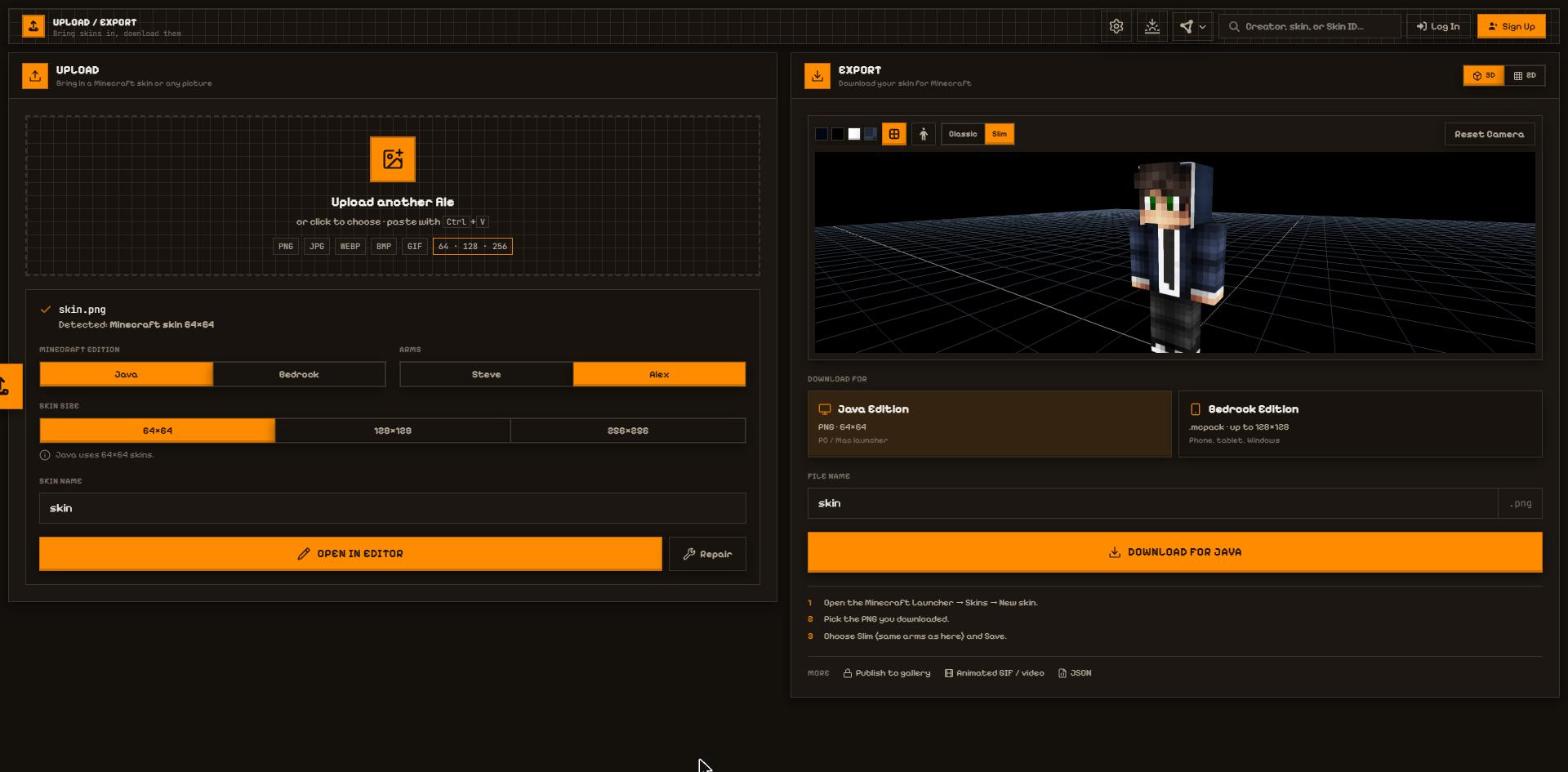
- Drop zone: PNG, JPG, WEBP, BMP, GIF.
- Detected: what the file is, e.g. "Minecraft skin 64×64".
Step 2: Check the skin settings
Minecraft edition: Java or Bedrock. An HD skin (128 or 256) picks Bedrock for you, because Java's launcher only takes 64×64.
Arms: Steve (4 px) or Alex (3 px). Skin size: 64×64, 128×128 or 256×256 — set from your file, and you can change it.
Skin name: used as the file name when you download.
- Minecraft edition and Arms.
- Skin size, with a note about what fits Java or Bedrock.
- Skin name.
Step 3: Open it in the editor
Press Open in Editor to keep painting. If the faces of a picture landed in the wrong places, press Repair instead.
- Open in Editor · Repair.
More guides
- How to fix a broken or old Minecraft skin
- How to make a Minecraft skin from a photo or image
- Pose your Minecraft skin and make renders & videos
Not an official Minecraft product. Not approved by or associated with Mojang or Microsoft.