Guides › More ways to make skins
How to make a Minecraft skin from a photo or image
Turn one photo — or separate front, back, side and top photos — into a skin, with colour, pixel look and background removal. Nothing is uploaded.
5 min read · 3 steps · Beginner
Step 1: Open Photo to Skin
Open Repair and click Photo to Skin at the top right. Your photos stay on your computer — nothing is uploaded.
Choose One photo (the front; the back is mirrored and the sides are guessed) or Each side (a separate photo for front, back, right, left and top).
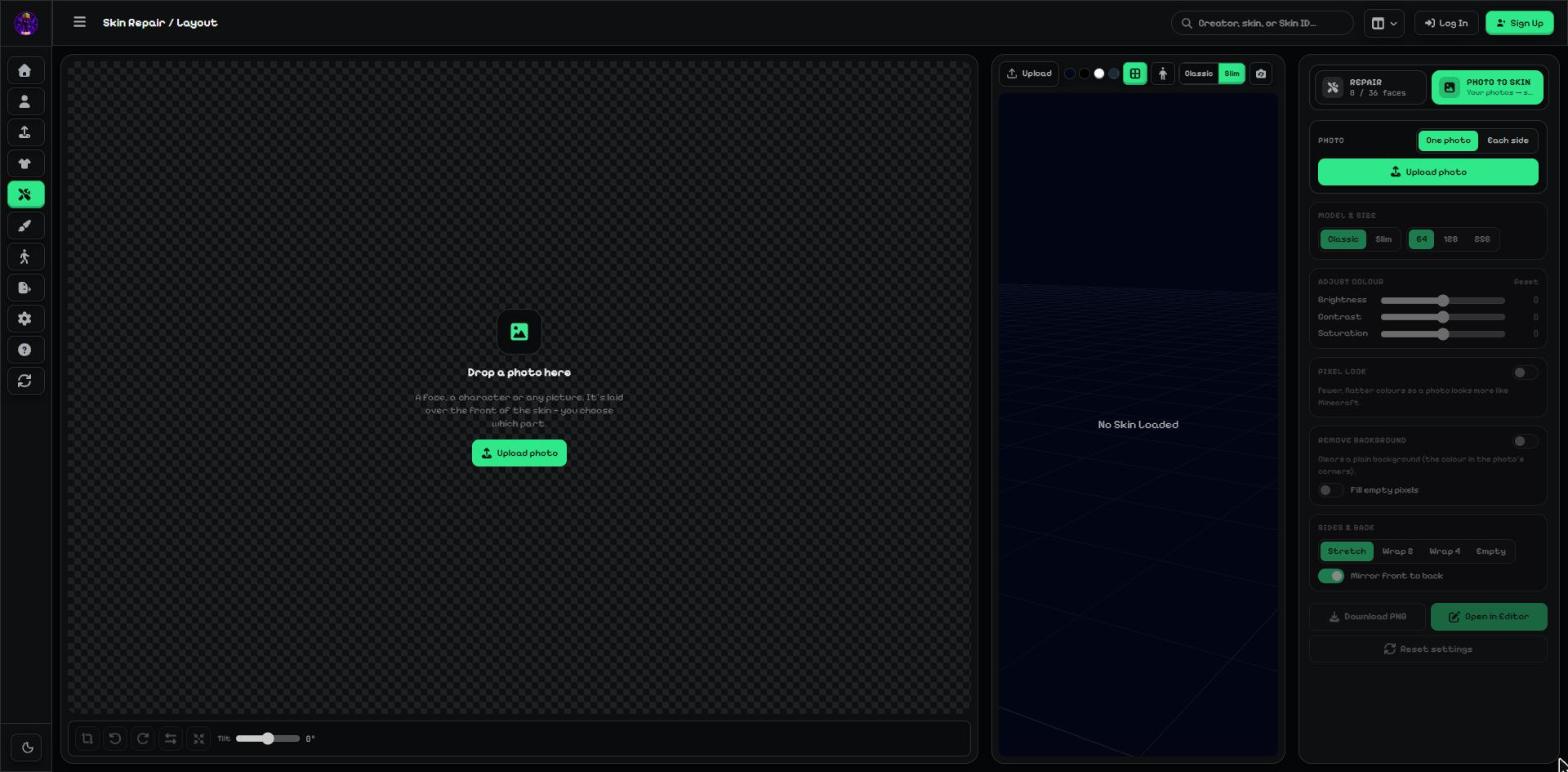
- Photo: One photo or Each side, then Upload photo.
- Photo area: crop, rotate, flip and tilt your photo here.
Step 2: Set the look
Model & size: Classic or Slim, and 64, 128 or 256.
Adjust colour: brightness, contrast and saturation.
Pixel look uses fewer, flatter colours so the photo looks more like Minecraft. Remove background clears a plain background; Fill empty pixels fills the holes it leaves.
Sides & back: Stretch, Wrap 2, Wrap 4 or Empty, and Mirror front to back.
- Model & size.
- Adjust colour.
- Pixel look and Remove background.
- Sides & back.
Step 3: Save it
Press Download PNG to save the skin, or Open in Editor to keep painting. Reset settings starts over.
- Download PNG · Open in Editor.
More guides
- Image to Minecraft skin: upload any picture or skin PNG
- How to fix a broken or old Minecraft skin
- Pose your Minecraft skin and make renders & videos
Not an official Minecraft product. Not approved by or associated with Mojang or Microsoft.