Guides › More ways to make skins
Pose your Minecraft skin and make renders & videos
Use pose presets or drag each body part, then take screenshots or record cinematic videos with Capture Me.
5 min read · 4 steps · Beginner
Step 1: Pick a pose
Open Custom Pose. Click a preset: Standing, Walking, Running, Zombie, T-Pose, Sitting, Wave, Crouch, Flex, Dab, Kick, Propose — or Flower to put a flower in the right hand.
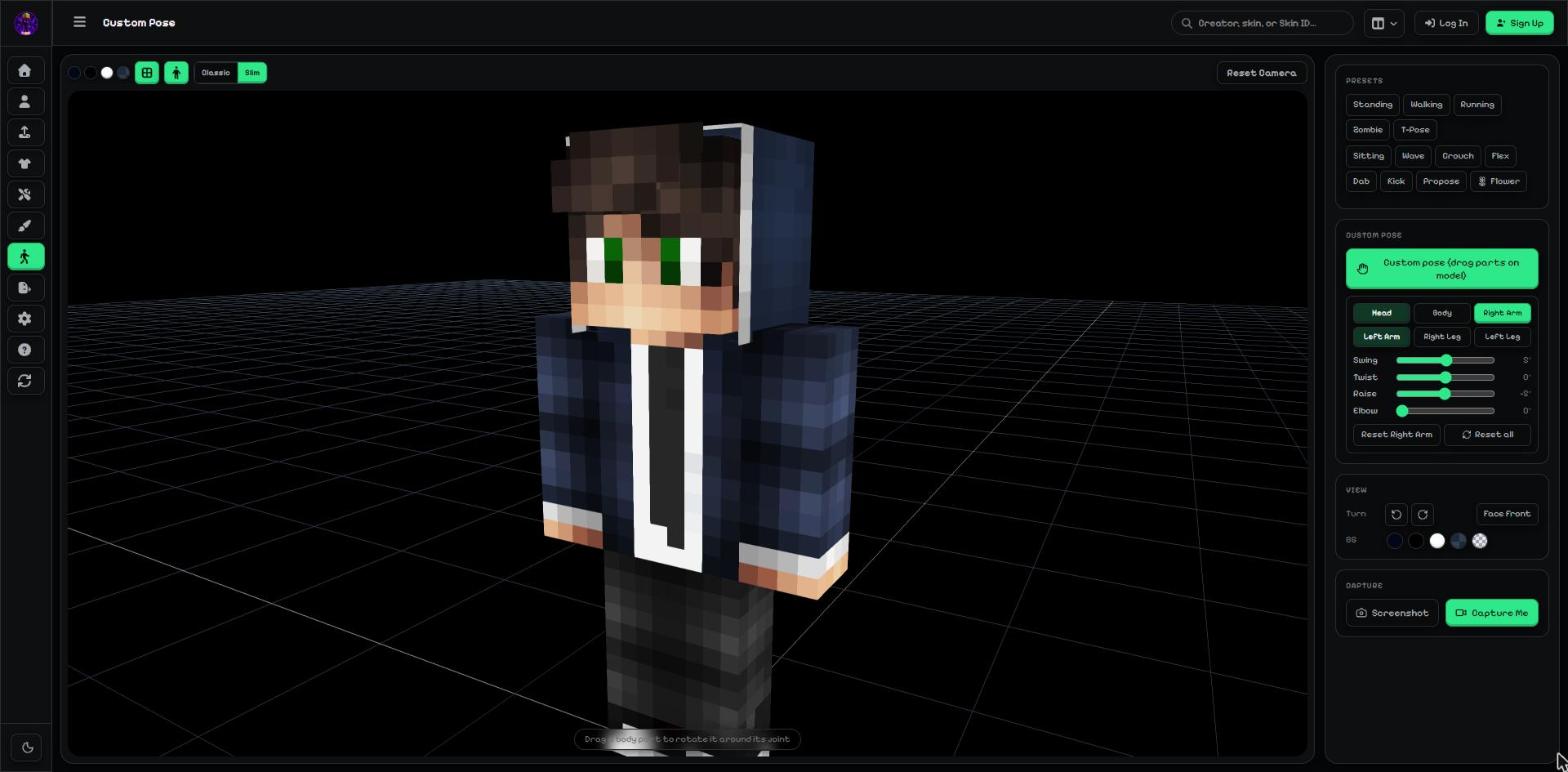
- Presets.
- Custom pose: drag body parts or use the sliders.
Step 2: Make your own pose
Press Custom pose (drag parts on model), then drag any body part on the model to rotate it around its joint.
For exact angles, pick a part (Head, Body, Right Arm…) and use the Swing, Twist, Raise and Elbow sliders. Reset puts one part back; Reset all puts everything back.
Step 3: View and screenshot
View: turn the model left or right, or Face front. BG changes the background (including transparent).
Press Screenshot to save a PNG, or Capture Me for videos.
- View: turn, face front, background.
- Capture: Screenshot or Capture Me.
Step 4: Record a video with Capture Me
Capture Me opens a stage. Choose a pose, a Spin (left, still, right, with speed), a Viewpoint (Front, 3/4, Side, Back, High, Low) and a Cinematic camera move (Top reveal, Side sweep, Orbit 360, Push in, Hero rise, Face close-up) with a distance.
Custom cinematic: move the camera where you like and press Add current view as point; the video glides through your points.
At the bottom choose 3, 5, 8 or 12 seconds and press Record. Clean view hides all buttons if you want to use your own screen recorder.
All 4 ways to make a GIF or video (including a quick walking GIF of any skin) are in the guide How to make a Minecraft skin GIF or video.
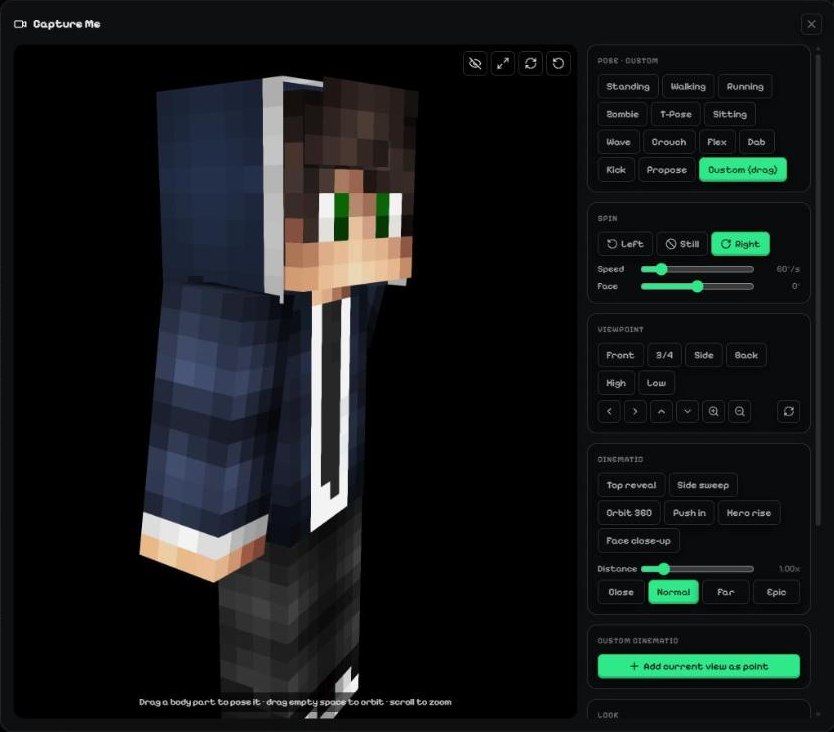
- Pose.
- Spin.
- Viewpoint.
- Cinematic camera moves.
- Custom cinematic points.
- Clean view, fullscreen, spin and reset.
More guides
- Image to Minecraft skin: upload any picture or skin PNG
- How to fix a broken or old Minecraft skin
- How to make a Minecraft skin from a photo or image
Not an official Minecraft product. Not approved by or associated with Mojang or Microsoft.