Guides › More ways to make skins
How to fix a broken or old Minecraft skin
Place each face of a picture onto the right part of the skin, one face at a time — perfect for wrong, stretched or old 64×32 skins.
6 min read · 3 steps · Intermediate
Step 1: Load the picture
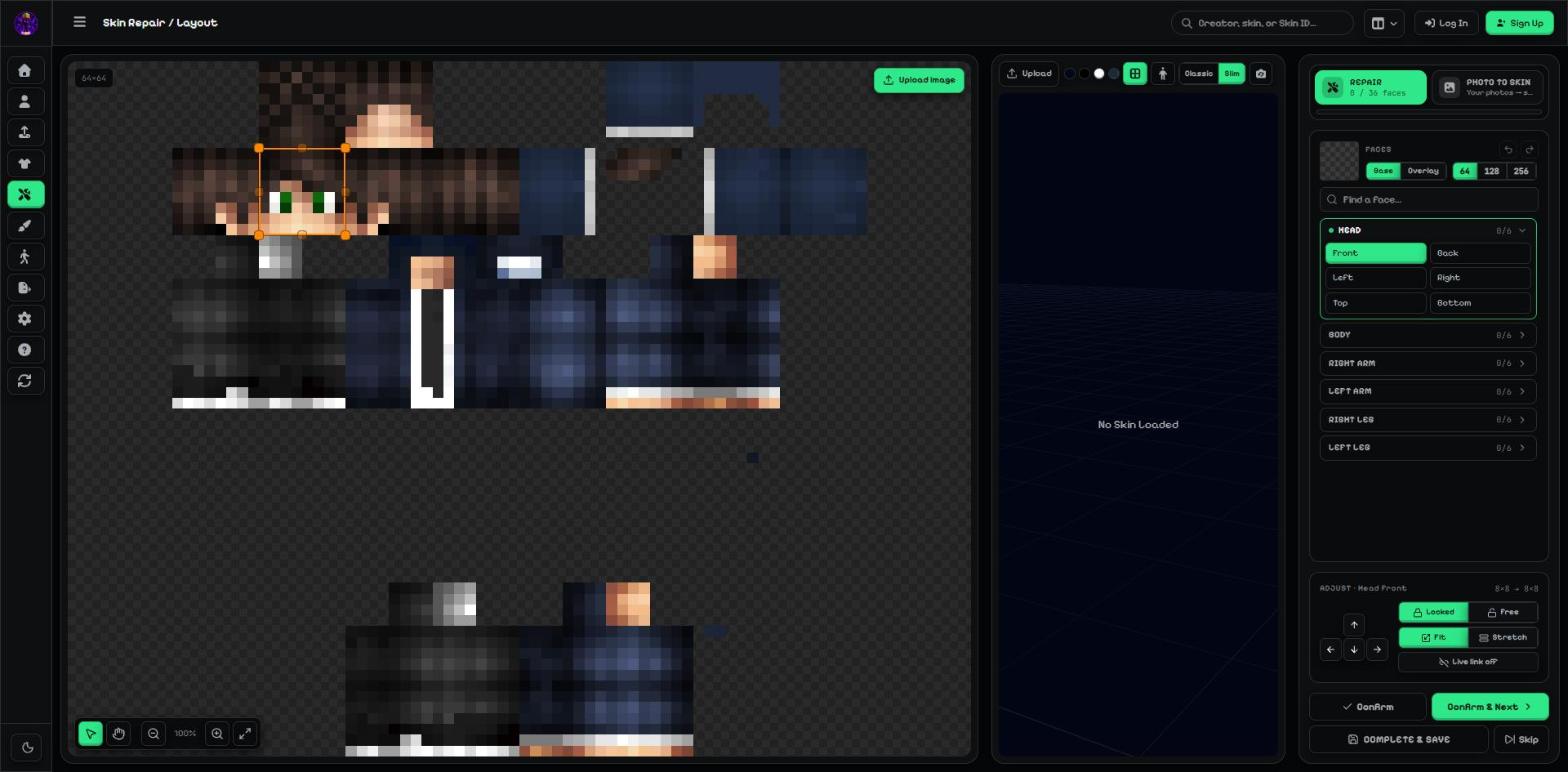
Open Repair and press Upload image. The picture shows on the left. On the right you see every body part and its faces.
- Upload image.
- Faces: Head, Body, Right Arm, Left Arm, Right Leg, Left Leg — 6 faces each, 36 in total.
Step 2: Frame one face
Pick a face, for example Head → Front. Then drag the orange box over that part of your picture and drag its corners to resize it.
Use the arrow buttons to nudge it one pixel at a time. Locked keeps the right shape for that face; Free lets you draw any box.
- The orange box: what goes on the chosen face.
- Adjust: arrows, Locked / Free, Fit / Stretch, Live link.
Tip: Fit keeps the picture's shape; Stretch fills the face exactly. Live link sends every confirmed face to the editor straight away.
Step 3: Confirm and go to the next face
Press Confirm & Next to save the face and jump to the next one. Repeat for every face you need.
When you are done, press Complete & Save. Skip takes what you have so far to the editor.
- Confirm · Confirm & Next · Complete & Save · Skip.
Repair options
| Option | Key | What it does |
|---|---|---|
| Base / Overlay | Which layer the face goes on. | |
| 64 / 128 / 256 | Size of the finished skin. HD sizes redraw the faces from your picture with more detail. | |
| Find a face | Type to jump to a face, e.g. "left arm top". | |
| Locked / Free | Locked keeps the face's own shape (head 8:8, body 8:12…). | |
| Fit / Stretch | Keep proportions, or fill the face exactly. | |
| Live link | On: every confirm updates the editor immediately. |
More guides
- Image to Minecraft skin: upload any picture or skin PNG
- How to make a Minecraft skin from a photo or image
- Pose your Minecraft skin and make renders & videos
Not an official Minecraft product. Not approved by or associated with Mojang or Microsoft.