Guides › Settings & extras
How to convert a .litematic to .nbt, .schem or .mcstructure
Turn a Litematica .litematic file into a vanilla Structure Block .nbt (or a WorldEdit .schem or Bedrock .mcstructure) in your browser, then load it in your world.
4 min read · 3 steps · Intermediate
Step 1: Drop the .litematic file
Open More → Tools → Schematic Converter and drop your .litematic file on the box (or click to choose it). It is read in your browser, so the build is never uploaded. Files up to 64 MB work.
You see the build's size in blocks and, if it has any, how many chests, signs and mobs it holds. A Litematica file with several regions is merged into one build.
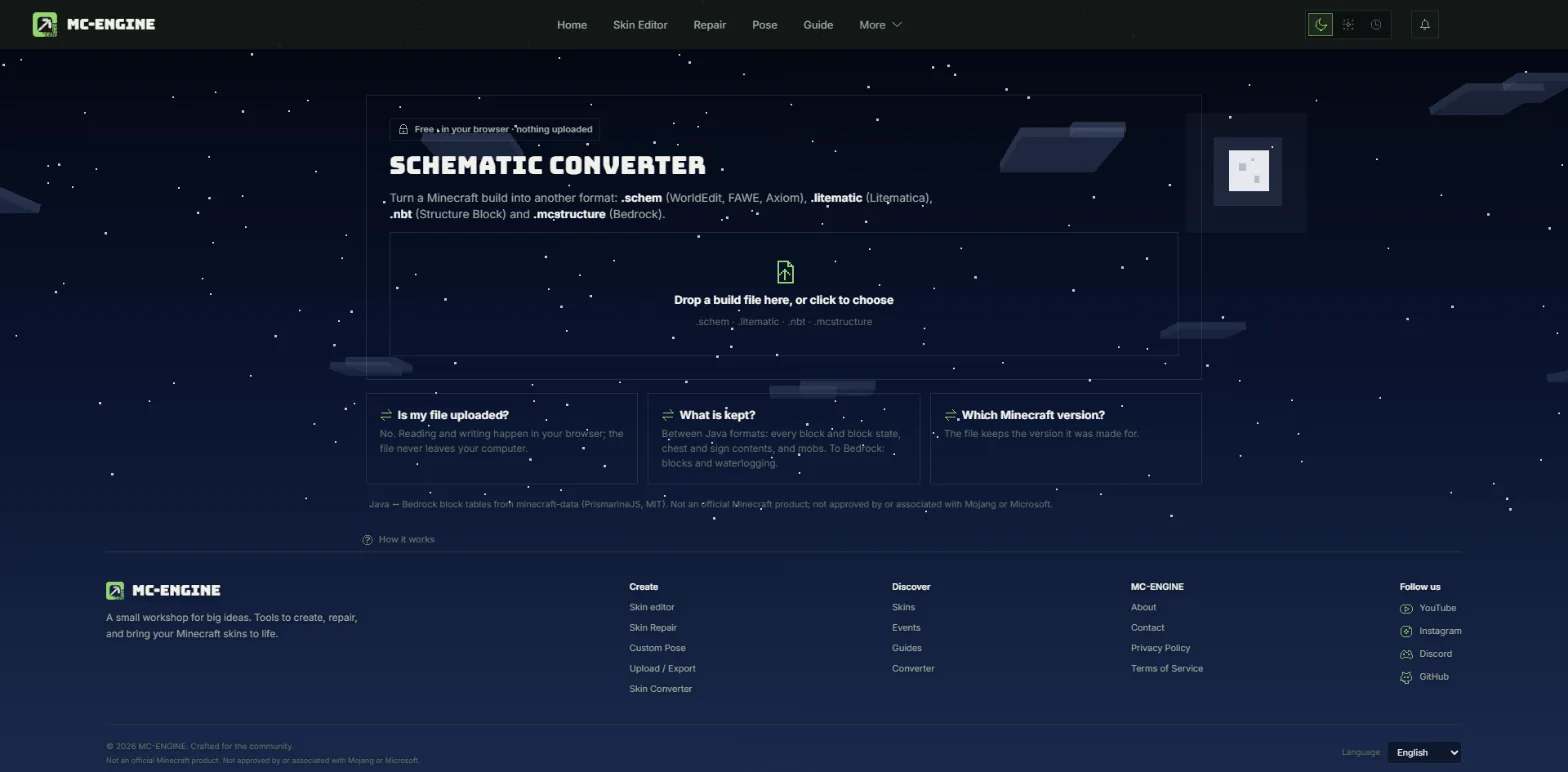
- Drop a build file here, or click to choose.
Step 2: Download the .nbt
Click .nbt. The new file downloads straight away. Between Java formats every block, chest and sign is kept.
The same file can also become a .schem (WorldEdit, FAWE, Axiom) or a .mcstructure (Bedrock) with one more click.
Step 3: Load it with a Structure Block
Put the .nbt in your world's generated → minecraft structures folder. The easiest way to find it: save any small structure once with a Structure Block in that world (Minecraft makes the folder), put your .nbt next to that file and open the world again.
Place a Structure Block (/give @s structure_block), switch it to Load, type the file name without ".nbt" and press Load twice — the first press shows the outline, the second places the build.
Tip: A Structure Block loads at most 48 blocks on each side. The converter warns you when a build is bigger; then load it with the /place template command instead.
More guides
- Theme, language and font
- Keyboard shortcuts
- Convert Minecraft build files
- Preview your skin in 2D and 3D
- How to make a Minecraft skin on your phone (Android & iPhone)
Updated 2026-11-09 · by the MC-ENGINE team
Not an official Minecraft product. Not approved by or associated with Mojang or Microsoft.