Guides › Settings & extras
Layouts, themes and fonts
Arrange the site your way (Classic, Unique, Darkness), choose a colour theme and switch between the Minecraft font and a normal font.
2 min read · 3 steps · Beginner
Step 1: Open Appearance
Open Settings (the gear icon) and click Appearance.
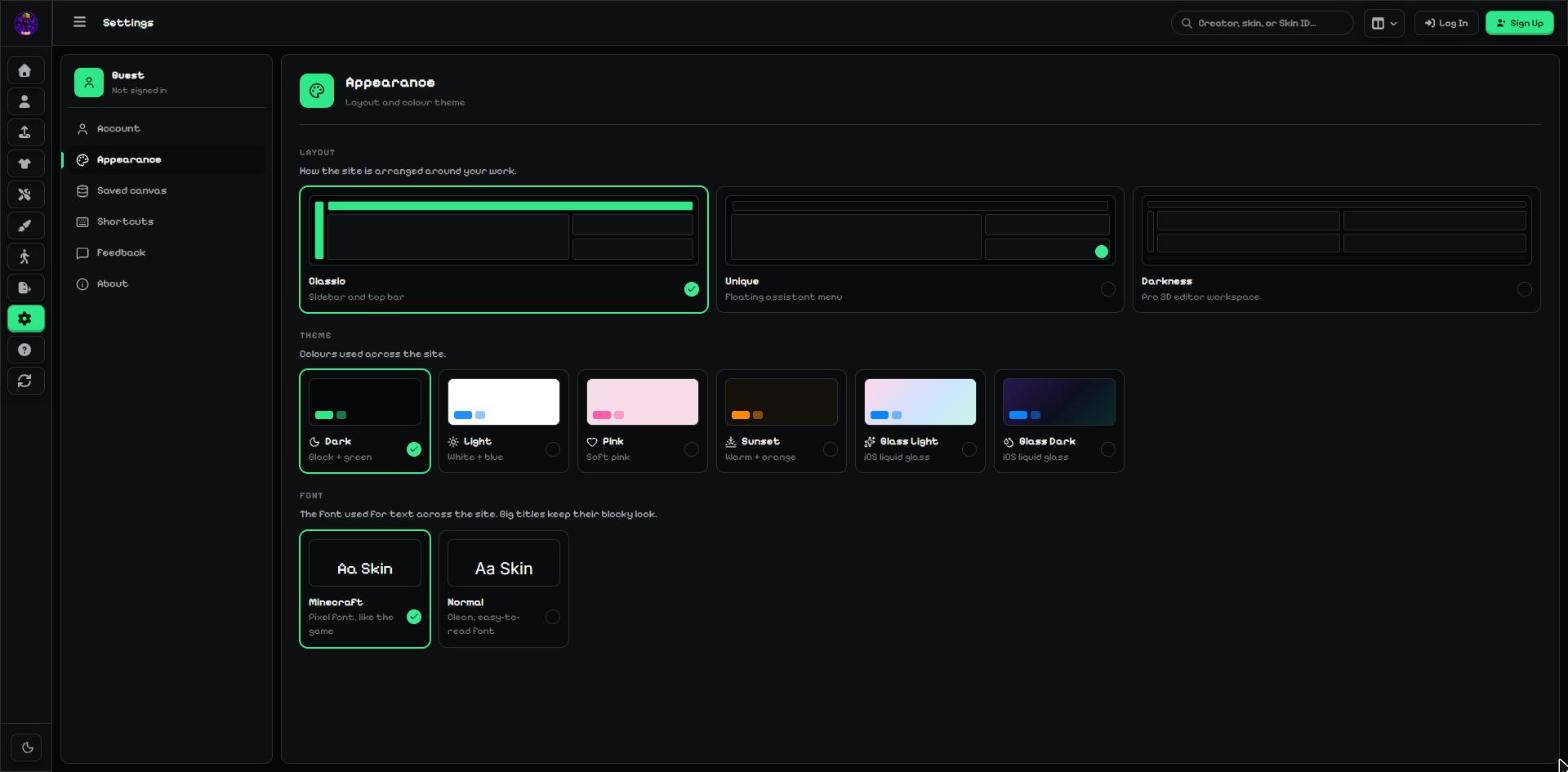
- Layout: Classic (sidebar and top bar), Unique (floating assistant menu) or Darkness (pro 3D editor workspace).
- Theme: Dark, Light, Pink, Sunset, Frost or Midnight.
- Font: Minecraft (pixel font, like the game) or Normal (clean, easy to read).
Tip: Darkness has its own colours, so the theme you pick is used in Classic and Unique.
Step 2: Other settings
Account: your sign-in and profile. Saved canvas: clear the skin saved in your browser (it is kept for 3 days so you can bring it back). Shortcuts: every keyboard key, and you can change them. Feedback: send us a message about a bug or idea.
About: the website version and a button to open this guide.
Step 3: Delete your account
Open Settings → Danger zone and press Delete account. Type your own username to confirm, then press Permanently Delete My Account.
This removes your account, profile and uploaded skins for good. It cannot be undone.
More guides
- Keyboard shortcuts
- Convert Minecraft build files
- Preview your skin in 2D and 3D
- How to make a Minecraft skin on your phone (Android & iPhone)
Not an official Minecraft product. Not approved by or associated with Mojang or Microsoft.