Guides › Getting started
How to make a Minecraft skin: your first skin in 5 minutes
From an empty editor to a skin you can wear in Minecraft: pick a model, choose colours, paint, check it in 3D and download it.
5 min read · 6 steps · Beginner
Step 1: Open the Editor
Click Editor (the brush icon) in the menu on the left. You don't need an account: your work is saved in your browser automatically.
The editor has four areas. You will use all of them in the next steps.
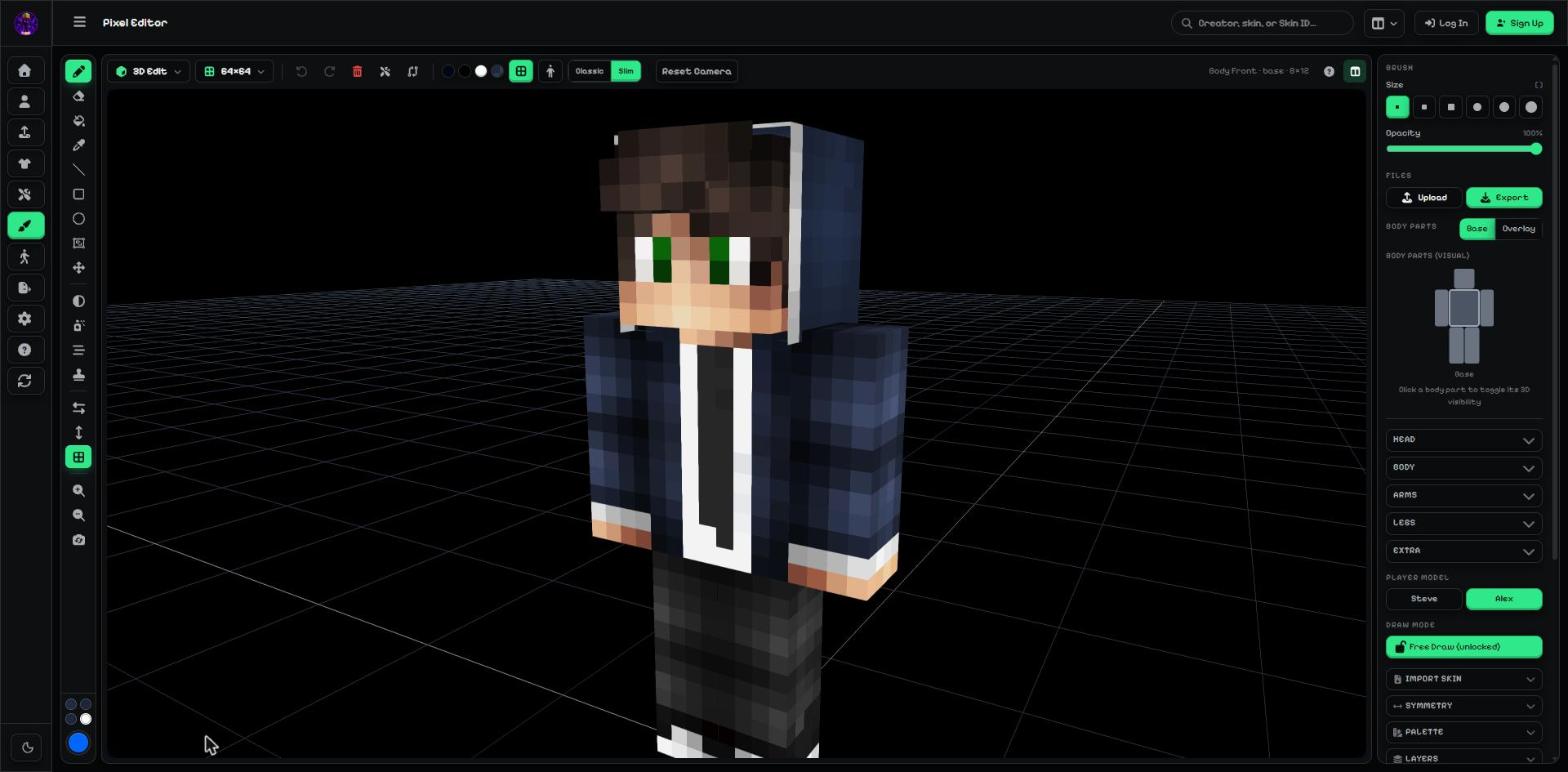
- Tool strip: pencil, eraser, bucket, shapes and more.
- Top bar: view (2D / 3D), skin size, undo / redo, model type.
- Canvas: where you paint, on the flat skin or right on the 3D model.
- Side panel: brush size, layers, body parts, palette and more.
Step 2: Start from a skin, or from scratch
Already have a skin or a picture? Press Upload in the side panel and choose the file.
Want a clean start? Open Templates & stamps in the side panel and pick Starter Steve, Starter Alex or Blank body.
- Upload opens a skin or any picture. Export goes to the download page.
Tip: You can also type a Minecraft player name in Import skin to load their current skin.
Step 3: Choose Steve or Alex
Minecraft has two body shapes. Steve (Classic) has arms 4 pixels wide, Alex (Slim) has arms 3 pixels wide.
Pick the one you want under Player model. When you put the skin in Minecraft, choose the same one.
- Steve = Classic arms, Alex = Slim arms.
Step 4: Pick a colour and paint
Click the big round colour button at the bottom of the tool strip and choose a colour.
Select the Pencil (key P) and click on the model or the flat skin to paint pixels. Hold the mouse button and drag to paint many pixels.
Made a mistake? Press Ctrl + Z to undo.
- Pencil: paints one pixel (or more with a bigger brush).
- Colour button: your current colour. The small dots above it are recent colours.
Tip: Turn on Mirror X (key F) to paint the left and right side at the same time.
Step 5: Check every side in 3D
In 3D Edit, drag on an empty part of the canvas to turn the model and scroll to zoom. Press Reset Camera to go back to the start view.
Switch to 2D Edit to see the whole flat skin at once. Each body part has 6 faces: front, back, left, right, top and bottom.
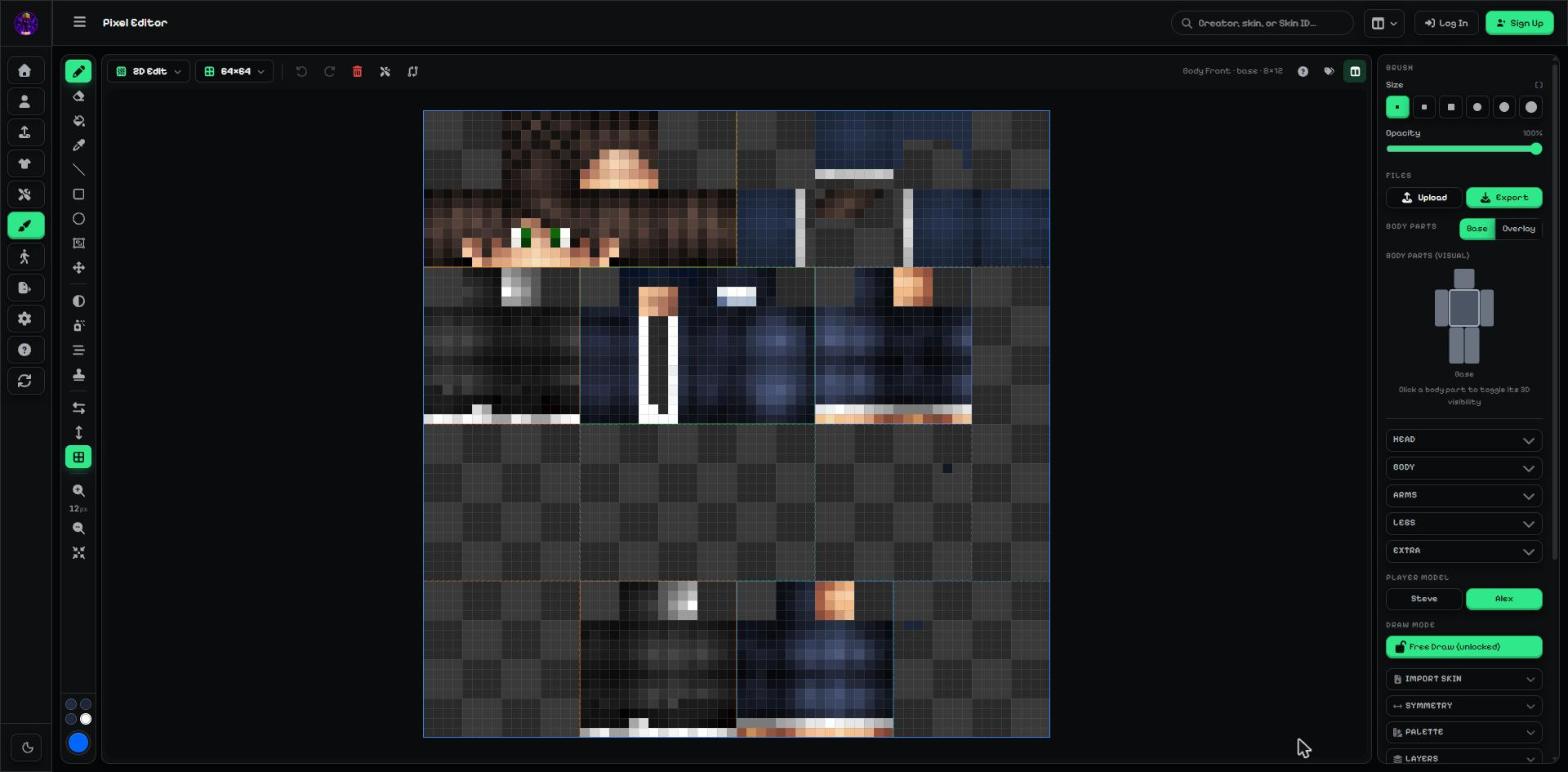
- The skin texture: this flat picture is exactly what Minecraft wraps around the model.
Step 6: Download it
Press Export in the side panel. On the Upload / Export page, pick Java Edition or Bedrock Edition on the right, then press Download.
The guide How to put a custom skin in Minecraft Java & Bedrock shows how to wear it.
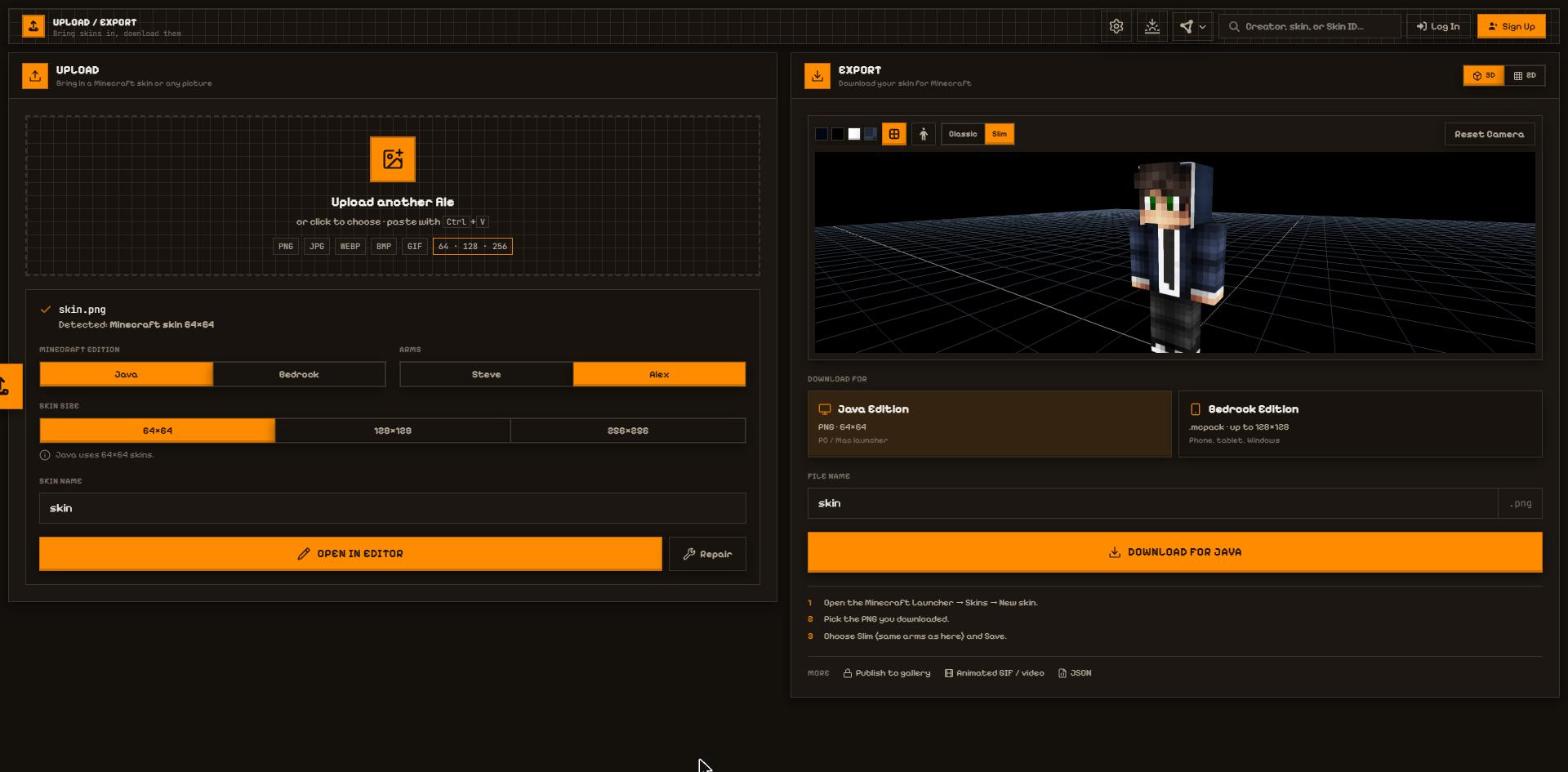
- Java or Bedrock.
- Download: a PNG for Java, a .mcpack for Bedrock.
Not an official Minecraft product. Not approved by or associated with Mojang or Microsoft.